How to back up a WordPress website (2026 guide)

A working backup of your WordPress website can mean the difference between a major disaster and a minor disruption.
Without a recent backup, years of work, customer orders, and other important data can disappear in minutes after a failed update, a hacked plugin, or a server failure.
To keep your site and data protected, this guide covers how to back up a WordPress website. It looks at automated plugins, multi-site options, and manual downloads so you can choose the right option. The guide also covers the habits that make backups dependable.
Table of contents
What does a WordPress website backup actually cover?
WordPress sites have two main components: files and a database.
The files include WordPress core, your theme, plugins, media uploads, and configuration files like wp-config.php.
The database holds your posts, pages, comments, settings, user accounts, and, if you run a WooCommerce store, your orders and products.
A backup you can fully restore needs both parts because the database lives separately from the files.
Full vs. incremental backups
Backups are captured in two main ways. A full backup includes everything each time it’s created. An incremental backup copies only what changed since the previous backup, and the chain is reassembled automatically when you restore. Incremental backups are faster to create and use less storage; the trade-off is that a restore depends on the whole chain being intact.
The Modular DS guide to backup plugins covers the trade-offs in more depth.
The four methods below all produce the same thing: a copy of your files and database. Where they differ is how much of the process is automated and where the backup files are stored.
Method 1: Use a WordPress backup plugin
A backup plugin is the simplest option for a single WordPress website. The best plugins are automated, require no server skills, and let you restore from the same interface where the backups were created.
Most WordPress backup plugins follow the same setup pattern. The screenshots here show UpdraftPlus, a popular free option, but the process is similar across plugins:
- Install and activate your chosen backup plugin.
- Connect off-site storage, such as Google Drive, Dropbox, or Amazon S3.
- Set a backup schedule that covers both your files and your database.
- Run the first backup manually.
- Open your storage location and confirm the backup is there.
Depending on the plugin, that might be one archive or several. UpdraftPlus, for example, stores the database and file archives separately, so check that the database file made it alongside the rest.

That last step is perhaps the most important. A backup stored only on your own server can disappear along with your site if your hosting account is hacked, suspended, or hit by hardware failure. That’s why off-site storage matters, and why “off-site” has to mean a genuinely different location. When fire destroyed two OVHcloud data centers in Strasbourg in 2021, customers whose backups sat in the same building as their servers lost both, and OVHcloud was later ordered to pay damages.
It’s also vital to get familiar with how your plugin handles restores so you’re ready when it’s needed. Just because a backup exists doesn’t mean it can be restored. Most plugins let you restore from their own dashboard in a few clicks, but the process differs enough between tools that it’s worth a dry run.

For help choosing a plugin, the Modular DS best WordPress backup plugins guide compares the main options.
Method 2: Back up all your sites from one dashboard
A site management platform lets you handle backups and restores for all your sites through a single dashboard. The best platforms also let you manage software updates and uptime monitoring.
Compared to checking the status of each site’s backups in its own dashboard, this can be a real time saver if you manage client sites or have several of your own.
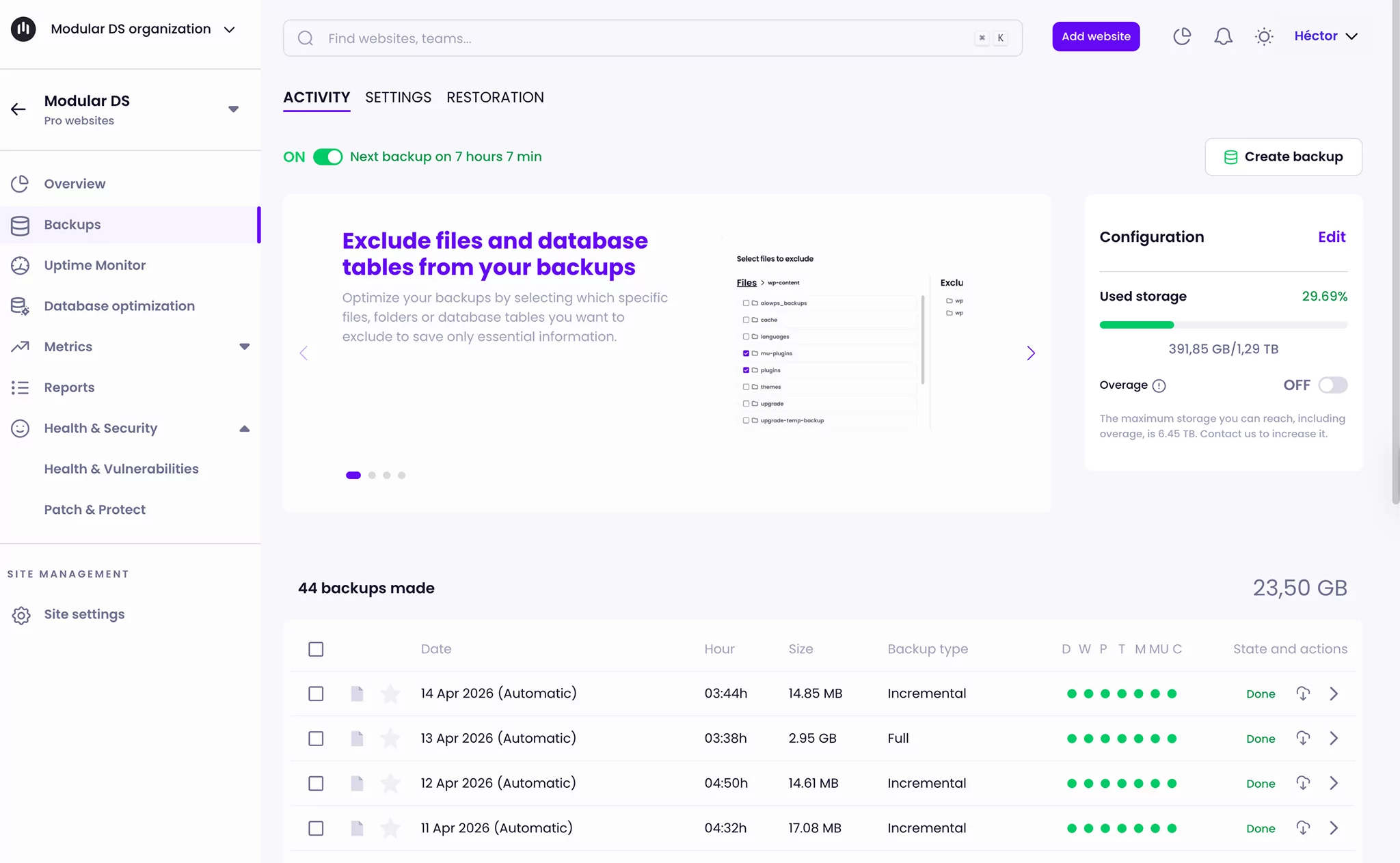
Modular DS is one option for backing up multiple WordPress sites from a central, cloud-hosted dashboard. Here’s how it works:
- Connect the site: Connect automatically with your WordPress admin credentials (used only to establish the connection, not stored), or manually by installing the Modular Connector plugin and pasting the connection keys.
- Configure the schedule: In Backups > Configuration, choose what to include (files, database, or both), how often to run (daily, weekly, or monthly), and how long to keep each backup (from two weeks up to 90 days). Daily backups are available on the Starter plan and up, while backups on the entry-level Freelance plan run weekly. Setting the recurrence to daily also unlocks incremental backups.

- Save and schedule: The first backup runs immediately, then follows your schedule. Copies are stored off-site on AWS, with a choice of Europe, the US, or Asia data regions. You can also set up to three backups per site as master backups. These are kept indefinitely, regardless of the retention window.

- Restore when something breaks: You can run a full restore or a partial one that only brings back the database, plugins, themes, or media. If the site is completely down and Modular DS can no longer connect to it, you can still restore by adding your server’s FTP and database credentials in the panel.

The Modular DS help doc on scheduling backups walks through each setting. Other management platforms handle backups too: ManageWP includes incremental backups with off-site storage on schedules up to hourly, and MainWP manages backups through extensions that connect to plugins like UpdraftPlus and WPvivid.
With only two or three sites, per-site plugins are perfectly workable, but a dashboard makes more sense as the count grows, or when clients expect regular reports that show their sites are being backed up.
Centralizing backups also opens the door to automating the rest of your WordPress maintenance tasks.
Method 3: Create a manual WordPress backup
You can also back up WordPress without a plugin. Compared to the other options, this is more of a manual process, and it involves downloading the files and database using tools provided by most web hosts.
Backing up the files
Open your hosting file manager, find your site’s root folder, and compress it into a ZIP you can download. The root folder is often called public_html, but confirm before assuming, especially if your account hosts more than one site. You can also download the files over SFTP with a client like FileZilla.

Backing up the database
Open wp-config.php and note the database name next to DB_NAME, along with the username and password next to DB_USER and DB_PASSWORD. Then open phpMyAdmin from your hosting panel; if it asks you to log in, use those credentials (some hosts sign you in automatically).
Select the database, go to Export, choose the Quick method with SQL format, and download the file.

Download the files and database as close in time as possible. On an eCommerce or membership site, copies captured hours apart may not match, with orders or accounts in one but missing from the other. Downloading files during a low-traffic window also lowers risk.
Manual backups are fine as a one-off. But as a routine strategy, they fall short because there’s no automatic schedule, versioning, or verification.
To restore, reverse the process by uploading the files and importing the SQL file through phpMyAdmin. However, it’s rarely that straightforward. You may need to drop existing tables before importing, and large SQL files can hit phpMyAdmin’s upload limit. Compared to one-click restore in other methods, it can be slow and unforgiving.
Method 4: Back up through your web host
Many managed WordPress hosts include automatic backups in their plans, so it’s worth checking exactly what yours provides.
Host backups usually live in their own section of the hosting panel, with buttons to create, download, or restore each copy, though the exact location varies by host.

Backup functionality varies between hosts and tiers, so check four things:
- Frequency: How often backups run.
- Retention: How long they’re kept.
- Location: Where they’re stored.
- Restores: How you perform one (usually from the hosting control panel).
When your site and backups depend on the same provider and account, a suspended hosting account, billing dispute, or provider-wide outage can put both out of reach. Host backups are a good layer to have, but as your only copy, they’re a gamble.
Which WordPress backup method should you use?
Here’s how to choose a WordPress website backup method:
- One site, no server experience: A backup plugin with off-site storage is the right choice.
- A few sites of your own: Per-site plugins still work, but switch to a multi-site management platform when it becomes too time-consuming, or you start falling out of the habit of checking that each backup ran.
- Client sites, or a growing portfolio: A management platform puts backup scheduling, monitoring, and restores in one place, and the reporting functionality gives you something to show clients.
- A one-off copy before a migration or major change: A manual backup does the job, although plugins and management platforms let you create backups on demand.
Before deciding, check what your host already provides. If its backups run often enough for your site and are stored separately from your website, you may not need a backup plugin. Some managed hosts, WP Engine for example, disallow backup plugins in favor of their own systems.
If you manage multiple sites, though, a management platform is still worthwhile. It centralizes the checking, restores, and client reporting, and your backups stay reachable even if a hosting account isn’t.
The Modular DS team’s advice is to run a platform like this alongside your host’s backups as an extra layer in a different location, rather than as a replacement.
Best practices for a reliable WordPress backup strategy
In addition to choosing the right method, you need a backup strategy for your WordPress website. The following habits determine whether the backup you have is one that effectively restores your site and its data:
- Set frequency by what you can afford to lose: If losing a day of orders, sign-ups, or form submissions would hurt, daily backups aren’t enough. Busy stores may need their databases backed up more often than their files. A brochure site that changes infrequently can back up weekly. Schedule the backup for a quiet window, because a backup running at peak traffic competes with your visitors for server resources.
- Follow the 3-2-1 rule: Keep three copies of your data, on two different types of storage, with one off-site. WordPress.org’s guidance is similar: keep at least three recent backups in different locations. In practice, an automated tool covers the off-site copy and an occasional download to your own machine (most backup plugins and Modular DS offer backup ZIP downloads) covers the rest.
- Back up before every update: Updates are a common reason for restores, so a fresh pre-update backup lets you undo issues rather than repair them. Some tools handle this automatically as part of safe updates, including Modular DS.
- Test restores before you need them: To find out whether your backups can be relied on when they’re needed, restore to a staging site periodically. The staging site should be private so a copied store can’t email real customers. Check that both the files and the database restored correctly. Some tools, including Modular DS, can create a staging site directly from a backup.
- Set retention deliberately: Keep enough backup history to recover from problems you notice later. Malware that’s been sitting on a site for six weeks won’t be removed by restoring a backup taken last week.
- Check what’s left on the server: Some tools leave working files behind after each run. These can grow surprisingly large, so make sure your tool cleans up after itself, and that old backups aren’t being swept up into the next backup.
- Protect the backups themselves: Backup files contain your database and
wp-config.php, which means credentials, customer data, and API keys. Store them somewhere with proper access control.
Most of these are quick to set up, and all of them are more convenient than rebuilding a site from cached pages.
If any of your clients need to meet ISO 27001, its information backup control asks for a similar list: a written policy covering what’s backed up, how often, where copies are stored, and how long they’re kept, plus regular restore tests.
Pick a method, then test the restore
A reliable backup setup comes down to three decisions: pick the method that fits the type and number of sites you manage, automate backups so they run without you, and test a restore so you know it works.
Do those three things and a broken site becomes a bad morning instead of a lost week and a difficult conversation with a client.
If you need to manage backups across a whole portfolio, a platform like Modular DS handles them alongside update management, uptime monitoring, client reporting, and more.
FAQs about WordPress backups
What’s the best way to back up a WordPress website?
Automated WordPress backups with off-site storage. For a single site, a backup plugin is the simplest option; for multiple sites, a management platform lets you schedule, monitor, and restore backups for every site from one dashboard.
How do I back up a WordPress site for free?
Free tiers of WordPress site backup plugins and manual backups through your hosting panel both work. Many hosts also bundle backups into their plans at no extra charge, though plans with backups included can cost more than those without. With free plugin tiers, check whether off-site storage is included and how frequently your site can be backed up.
Does WordPress automatically back up a site?
No. WordPress core has no built-in backup feature. Backups come from a plugin, a website management platform, your host, or a manual process you run yourself.
How do I back up a WordPress website without a plugin?
To back up your WordPress site without a plugin, you can download the files and export the database manually through your hosting panel, rely on your host’s automatic backups, or, if you’re comfortable on the command line, script it with WP-CLI using wp db export plus a copy of the files. With the manual and WP-CLI routes, nothing runs automatically unless you set it up yourself.