How to set up automated WordPress maintenance without losing control

If you’re managing the maintenance of multiple client sites, you already know how repetitive and time-consuming the work can be. Updates, backups, uptime checks, and database cleanups aren’t complicated, but the tasks stack up fast when you’re doing it manually across every site.
Automating those tasks can save you hours each week. However, if you skip safeguards such as verifying backups and having a way to roll back changes, an automated update can take down a client site without you even realizing it.
To help you set up automated WordPress maintenance safely and effectively, this guide covers which tasks to automate, common pitfalls to avoid, and how to design a workflow that meets your needs.
Table of contents
Why automate WordPress maintenance?
Manually running updates, checking backups, and reviewing site health across a portfolio of client sites takes hours every week. That’s time you’re not spending on strategy, client relationships, or growing your business. The more sites you manage, the more the problem compounds.
There’s also the consistency problem. It’s easy to miss a plugin update on one site, skip a backup on another, or ignore uptime alerts during a busy week. This doesn’t happen because you’re careless; it’s that you’re doing the same repetitive tasks across many sites without a system in place.
Automation fixes both of these issues. With the right tools, your maintenance work becomes more consistent, less dependent on memory, and scalable without hiring extra staff.
Maintenance tasks worth automating
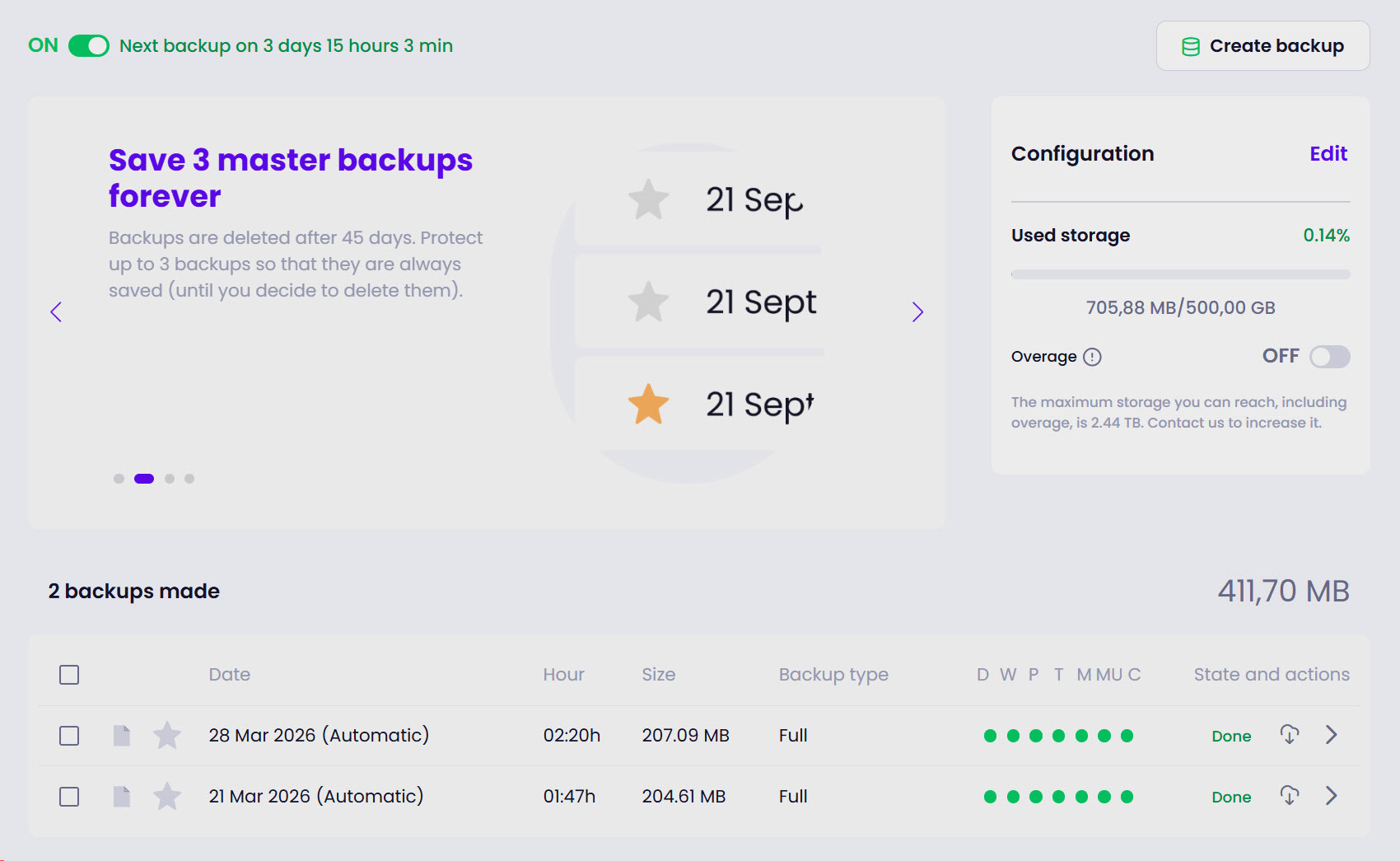
Not every maintenance task needs automation, but those that are repetitive, time-sensitive, or easy to forget are great places to start.
- Updates: Core, plugin, and theme updates happen frequently, and falling behind creates security and compatibility risks. Automating them keeps sites up to date without requiring you to log into each one individually.
- Backups: Site backups should run on an automated schedule. Key factors to consider when automating them include off-site storage, sensible intervals, and easy restores. Our guide to the best WordPress backup plugins will help you choose the right tool for this task.
- Uptime monitoring: Automated monitoring with alerts means you’ll know about downtime before your clients do. Our uptime monitoring guide covers this in more detail, including the features to look for and tools to consider.
- Database optimization: Clearing post revisions, expired transients, spam comments, and other unnecessary data can add up over time and slow sites down. Scheduling regular automated cleanups keeps databases lean and sites running smoothly.
- Security and vulnerability scanning: Automated scanning can flag known vulnerabilities in installed plugins and themes, so you don’t have to manually check changelogs and security databases to stay on top of issues.
- Broken link checks: Setting up scheduled checks across your sites to catch 404s and dead links before visitors or clients notice them is much more efficient than relying on manual reviews.
- Client reporting: Automated maintenance reports show clients which tasks were completed, the issues caught, and what’s going well, turning invisible background work into visible value.
You don’t need to tackle all of these at once, but they’re all tasks that can be automated when you’re ready.
Our guide to WordPress site maintenance provides more information on effectively looking after client sites.
Common automation pitfalls
Automation solves real problems, but it can introduce new ones if you’re not careful.
Treating automation as “set and forget”
Automated shouldn’t mean unmonitored. A lot can go wrong if systems are left unattended, including update rules becoming outdated, or backup storage destinations filling up or losing access.
Uptime and performance alert thresholds that were appropriate when a site launched may no longer be suitable as the site becomes more popular or more important.
If you configure automation and never revisit it, failures can compound unnoticed. To counter this, build in regular reviews every few months.
Applying updates blindly
Auto-updating without testing can quickly break a site. A plugin update that conflicts with a theme, or a major core release that introduces issues, can take a site down if applied without any checks.
A smarter approach is rules-based automation: auto-apply minor and security updates, but flag major releases for review. Using a staging environment to test significant changes before pushing them to production can help catch problems before they reach the live site.
No backup or recovery plan
Automation can actually make the situation worse if a task breaks a site and there’s no recent restore point to fall back on. Every automated change, whether it’s a plugin update or a database cleanup, carries some risk, so a solid backup system is essential. If you’re not sure where to start, this guide covers the main methods to back up a WordPress site.
Backups alone aren’t enough, though. The recovery process should be regularly tested to ensure it works and you know how to restore a backup when needed.
No clear ownership of alerts
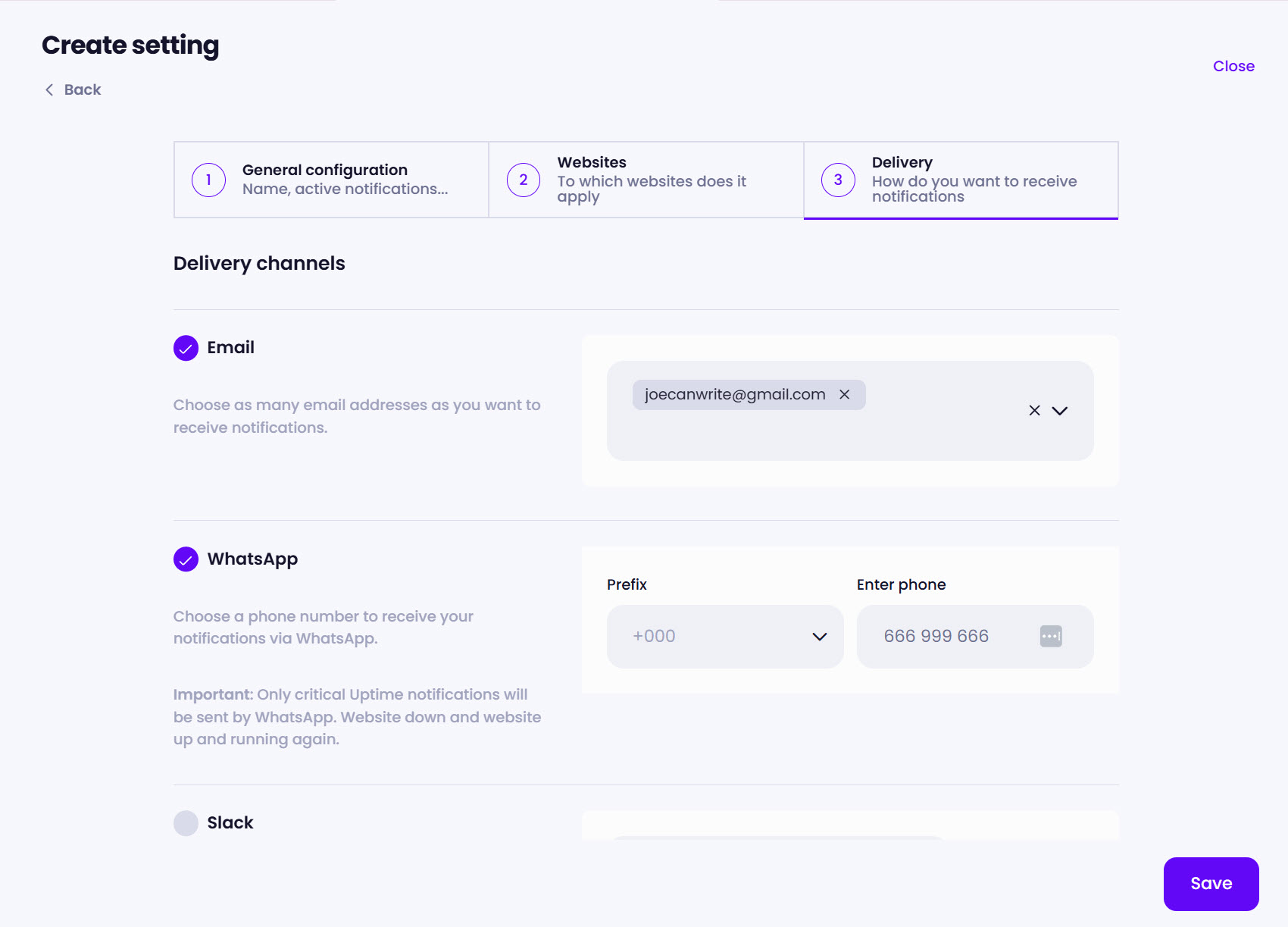
Automated monitoring generates alerts, but if uptime notifications go to a shared inbox that nobody checks, or security alerts land in a muted Slack channel, you won’t be able to respond quickly to the issue.
To overcome this, someone needs to own each alert type. You should define who’s responsible, set response times, and agree on how issues get escalated if the first person can’t respond.
Good WordPress management tools let you route alerts to different channels, such as Slack, email, and WhatsApp, so notifications go somewhere they’ll actually be seen. Modular DS, for example, supports all of these.
Skipping documentation
It might be tempting to skip documenting your automations to save time, but this can create problems later. When a backup fails, or you need to know why a site is configured differently, documentation shows you what’s running, when, and why. Even if you work alone, your future self will thank you.
How to build an automated WordPress maintenance workflow
Once you’ve decided to automate, here’s how to approach it without overcomplicating things.
Start with what costs you the most time
Instead of trying to automate everything at once, look at where you’re spending the most manual time each week. For most people, that’s updates and backups, so get those running reliably first.
Use staging sites for updates
Test updates in a staging environment before pushing them to your live sites. Sites with complex setups, including custom themes, a page builder, or WooCommerce, especially benefit from this.
Set smart rules, not blanket automation
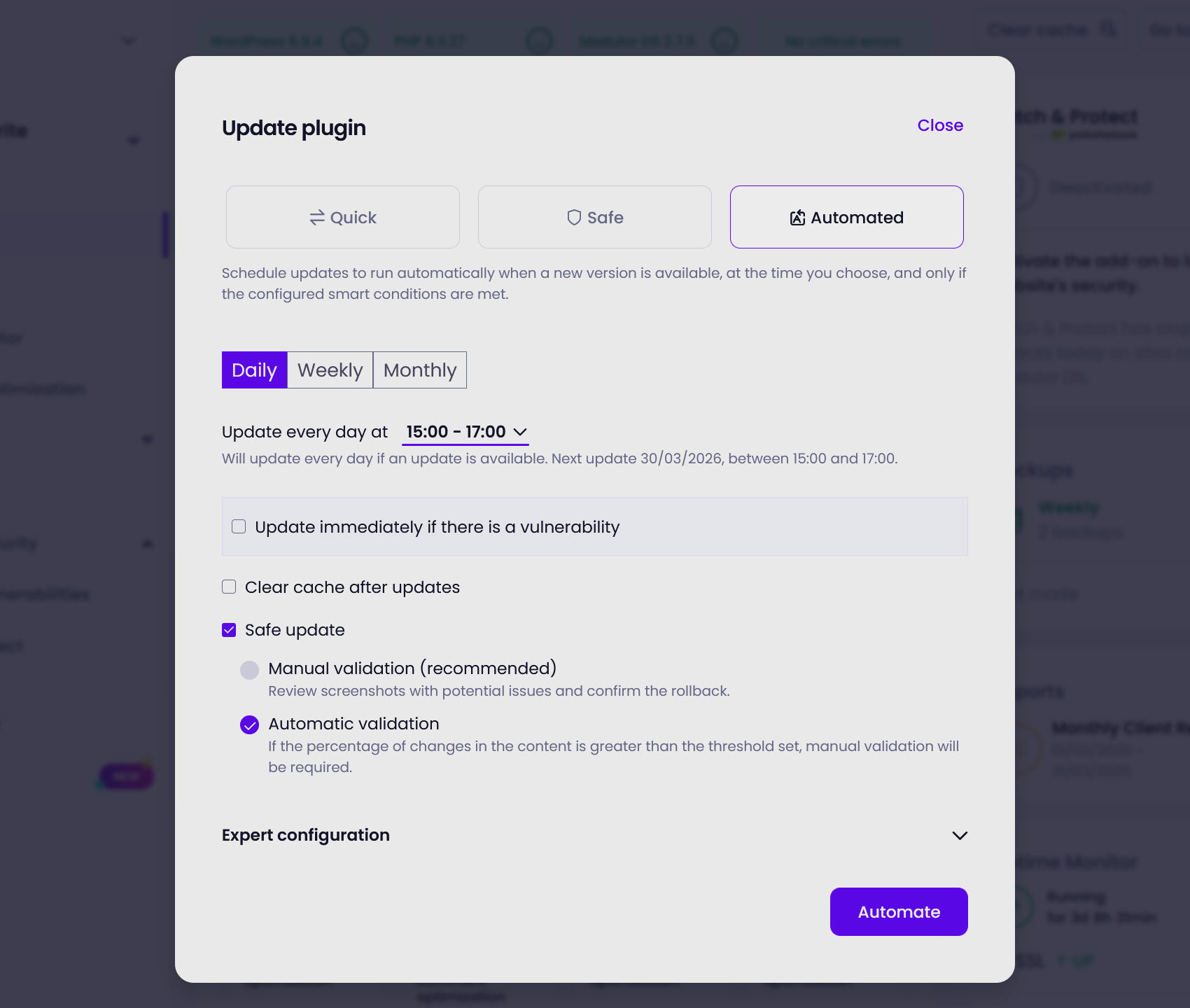
“Updating everything immediately” isn’t the best automation strategy. Instead, use rules-based approaches, such as auto-applying security patches and minor releases and holding major updates for review. If an issue arises after an update, changes should be rolled back automatically.
WordPress management tools are built for this kind of workflow. For example, Modular DS has smart rules for automated updates that let you define different behavior for different update types, with the option to enable safe updates that roll back changes if a problem is detected. This means you’re not forced to choose between “manual everything” and “auto-update blindly.”
Centralize where you can
If you’re using different solutions for each maintenance task, you’re spending time managing your tools rather than managing your sites.
A WordPress management platform brings all of that into a single dashboard, so you can check the status of every client site in one place, schedule backups, apply updates across your portfolio, and generate maintenance reports without switching between services.
Platforms like Modular DS, MainWP, and ManageWP each handle this differently, but the core benefit is the same: less context switching, more consistent workflows, and maintenance activities that are visible and reportable.
Our guide to managing multiple WordPress sites compares the main options in detail.
Review and adjust regularly
As you gain new clients, work with different hosting providers, or adjust your service offerings, your automated workflows will need to evolve.
When you review your automations, check that everything is still running as intended, remove alerts that are no longer relevant, and update rules that are now outdated. For example, a client site that’s moved from shared hosting to a managed WordPress host may no longer need the same backup schedule, while a site that’s added WooCommerce might need stricter update rules than when it was a simple online brochure.
Build it gradually
A solid automated WordPress maintenance workflow is more consistent, more efficient, and less error-prone than doing everything manually. The right setup can mean fewer emergencies, more predictable workloads, and a better service for your clients.
Remember, you don’t need to automate everything overnight. Pick the tasks that take up the most time, set sensible rules, make sure your backups are solid, and go from there as your confidence grows.
WordPress maintenance automation FAQs
Is it safe to automate WordPress maintenance?
Yes, with the right safeguards, it is safe to automate it. Use staging environments for major updates, ensure you have verified backups ready to restore, set rules that distinguish between low-risk and high-risk changes, and review your automation regularly.
Which WordPress maintenance tasks should I automate first?
The best WordPress maintenance tasks to automate first are updates and backups. These are the most time-consuming when done manually across multiple sites and the most straightforward to automate safely. Once those are reliable, you can add others, such as uptime monitoring, vulnerability scanning, and reporting.
What if an automated update breaks a site?
This is why backups are a prerequisite for any update automation. If an update causes a problem, you restore from the most recent backup. Some WordPress management tools go further by highlighting potentially risky updates in advance, capturing before-and-after screenshots to check for visual changes, and triggering an automatic rollback if something goes wrong.
Can I automate WordPress maintenance without a management platform?
You can, using a combination of individual plugins on each site, such as an updates manager, a backup plugin, an uptime service, and so on. But managing separate tools across many sites adds its own overhead, which is why most agencies and freelancers eventually move to a centralized platform.
How do I automate client maintenance reporting?
WordPress management platforms typically include reporting features that pull data from your maintenance activities, including updates applied, backups completed, and uptime stats, and generate reports you can share with clients. The maintenance reports guide covers this in detail.