WordPress site monitoring: What to track and the best tools for agencies

Manually checking each client site when you’re managing ten, twenty, or fifty of them isn’t an option. Instead, you need a WordPress site monitoring setup that watches every site, flagging issues before clients notice and turning potential emergencies into quick, report-ready fixes.
This guide covers what to monitor, what to look for in a tool, and six popular options to consider.
Table of contents
What to monitor on a WordPress site
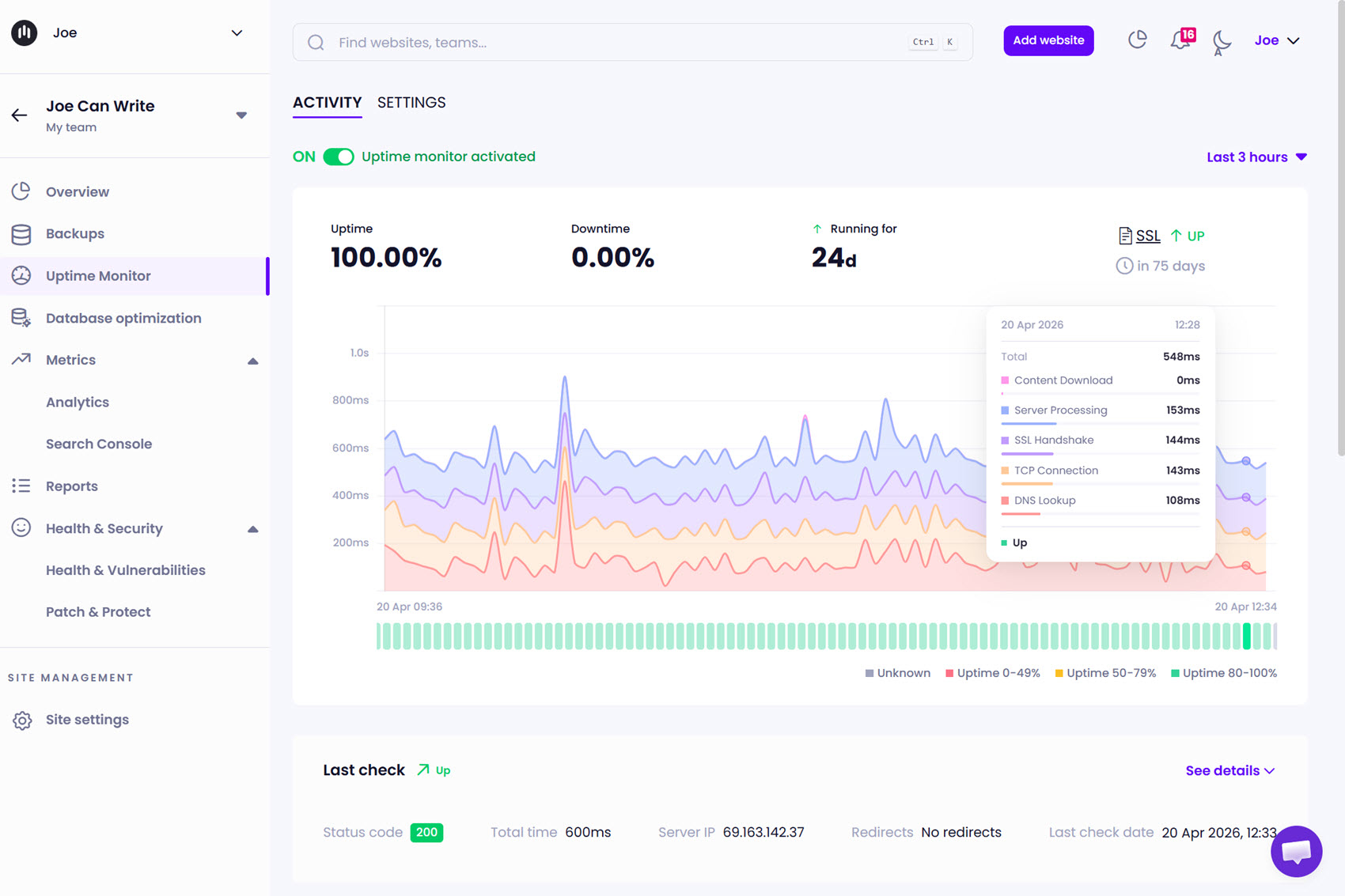
Site monitoring goes well beyond simply checking if a site is up, especially when you’re responsible for client sites that need to stay online, fast, and secure. A solid setup covers several layers at once, so you spot issues as they arise.
The key items to monitor on a WordPress site are:
- Uptime and downtime: Knowing immediately when a site returns a 500 error, fails to resolve, or drops behind a misconfigured firewall is the baseline. Our uptime monitoring guide goes deeper into how to set this up.
- Performance and loading times: Slow pages hurt user experience, conversions, and SEO, and performance tends to degrade over time as the database and installed plugins grow. Tracking load times and Core Web Vitals helps you catch regressions before clients notice.
- Security and vulnerabilities: Monitoring should flag known vulnerabilities in the plugins and themes running on a site, as well as signs of unauthorized access or suspicious activity, such as unexpected admin users, modified core files, or unusual login attempts — all of which can indicate a site has been compromised.
- Plugin, theme, and core updates: Tracking what’s outdated across every client site in your portfolio is the first step in a safe update workflow, and it becomes essential when you’re managing more than a handful of installs.
- Site health and errors: PHP errors, broken links, and WordPress debug signals often point to problems that don’t take a site down but quietly break features.
- Traffic and search visibility: Including Google Analytics and Search Console data in the same dashboard as your other monitoring signals gives you a fuller picture of how each client’s site is actually performing.
- User activity and site changes: Monitoring who logs in and what users change helps you investigate issues. This includes plugin and theme changes, new administrator accounts, settings updates, content edits, and failed login attempts.
The best monitoring tools cover all of the above in one place, rather than requiring you to switch between dashboards to get an overview of each site.
How to choose the best WordPress monitoring solution
Once you know what to monitor, the next question is which tool to use. A few factors separate the options once you get past the marketing pages:
- Multiple monitoring capabilities: Some tools handle uptime, performance, security, updates, and more in one dashboard, while others focus on a single area. All-in-one solutions keep things simple and can be more cost-effective, but single-purpose tools sometimes go deeper into their specialized areas.
- Alert flexibility: Multiple channels (email, Slack, WhatsApp, etc), tuning thresholds, and applying different notification profiles to groups of sites keep alerts actionable rather than noise you end up ignoring.
- Integrations: Connections with Google Analytics, Google Search Console, PageSpeed Insights, and a security partner such as Patchstack bring traffic, search, performance, and security data into the same dashboard you use to manage sites. That means spotting issues like a sudden traffic drop, a failed Core Web Vitals check, or a newly disclosed plugin vulnerability at a glance rather than switching between tools, and including the same data in client reports without extra steps.
- Usability at scale: A fast list view that shows every site’s monitoring status at a glance is a real time saver, and tagging, teams, and bulk actions become essential once you’re managing dozens of sites.
- Reporting: Having monitoring data feed directly into branded reports shows clients the value of your work without manually assembling screenshots each month.
- Pricing model: Per-site, per-add-on, and tiered pricing models scale very differently. A tool that looks affordable for five sites can become the most expensive option once your portfolio grows, so it’s worth modeling the cost for the number of sites you manage now and expect to manage in the future.
Weighing these factors against your portfolio’s needs will point you toward the option that best fits your approach to managing client sites.
Best WordPress site monitoring tools
The following tools cover the main approaches to WordPress site monitoring: comprehensive platforms, self-hosted control, monitoring-first specialists, and single-purpose tools.
Modular DS
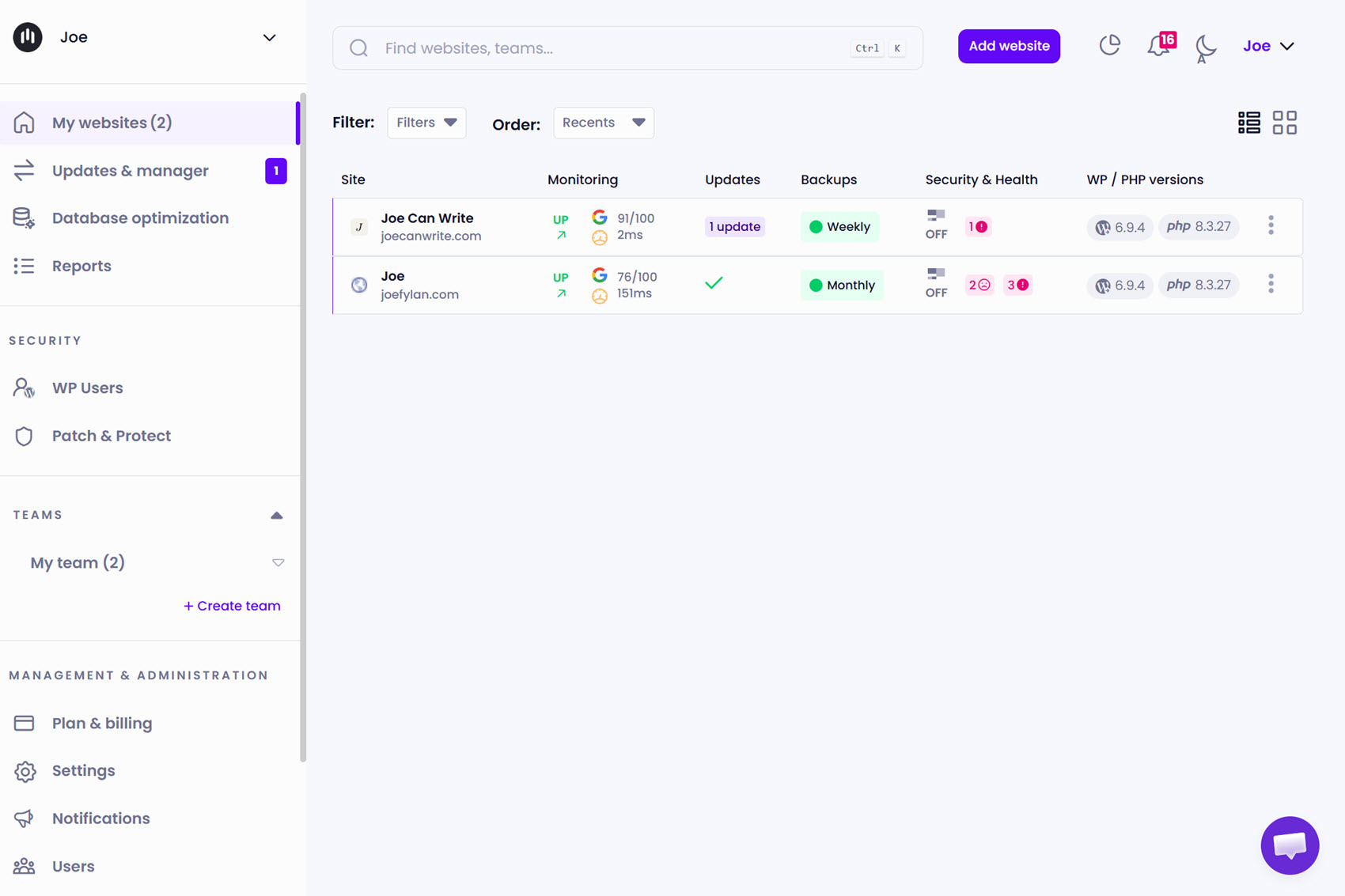
Modular DS is a WordPress management platform that combines monitoring, updates, backups, and client reporting in one dashboard, aimed squarely at freelancers and agencies managing multiple sites.
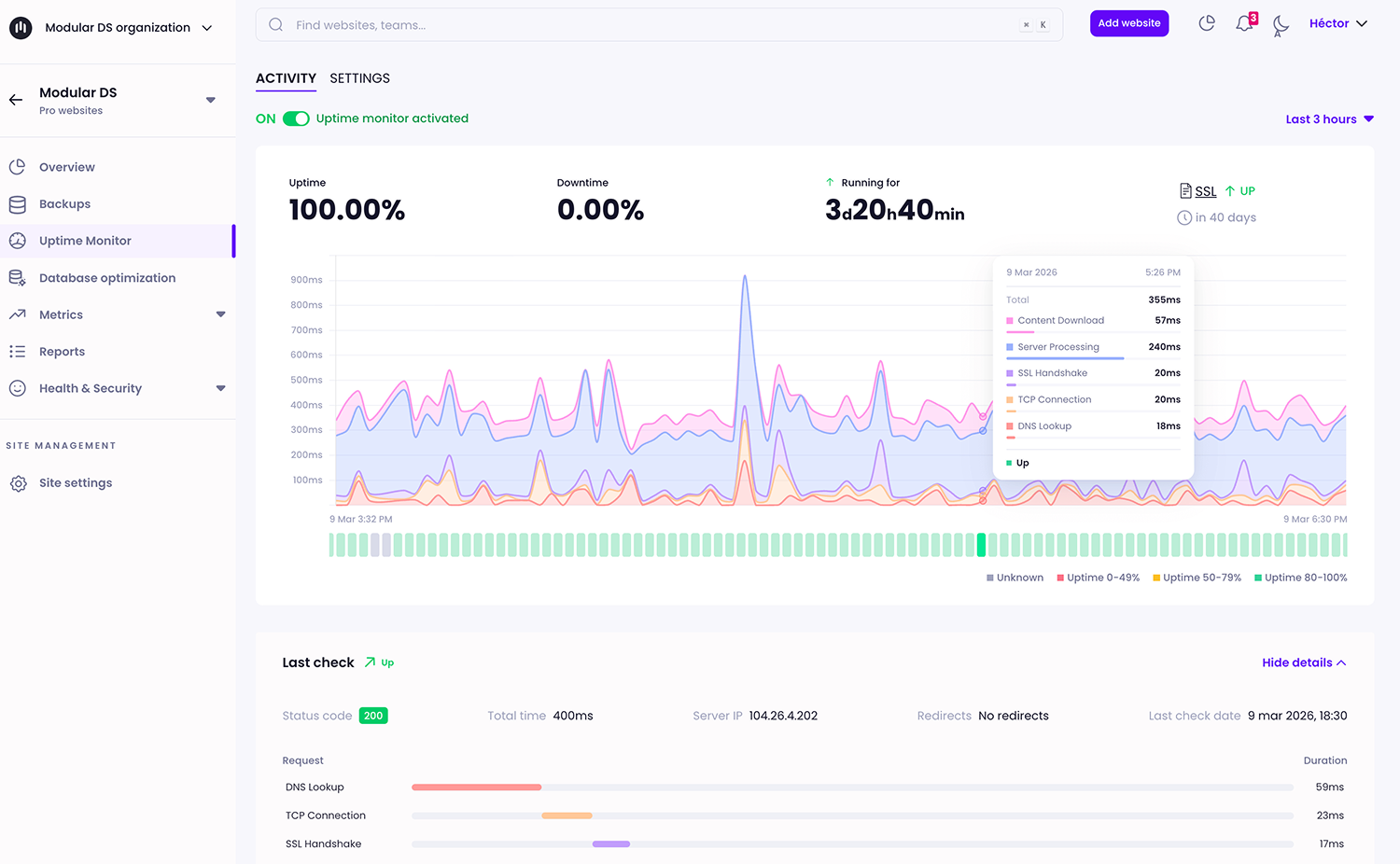
Its uptime monitor was recently upgraded with improved reliability, detailed check logs, real-time stats, and better alerting.
The list view gives you an at-a-glance status for every site across uptime, performance, and health. Integrations with Google Analytics, Google Search Console, PageSpeed, WooCommerce, and Patchstack bring traffic, search, and security data into the same place you manage updates and backups.
Pros:
- Comprehensive monitoring alongside updates, backups, and reporting
- Advanced update management and plugin health monitoring, including Update Copilot risk scoring and warnings for abandoned or long-unmaintained plugins
- Alerts via email, WhatsApp, Slack, and Discord
- Admin user add/remove alerts, which few competitors offer
- Security scanning and vulnerability alerts included in all plans, with Patch & Protect (virtual patching and hardening rules via Patchstack) as a paid add-on
- Branded client reports that include monitoring data automatically
- Flexible overages and core features in every plan make it more cost-effective as the number of sites grows
Cons:
- As a newer platform, the third-party integration ecosystem is still growing compared to longer-established alternatives
- The breadth of features could feel overwhelming if you only want uptime or basic monitoring
Pricing: Plans start at $16/month for 10 sites, with a 14-day free trial.
ManageWP
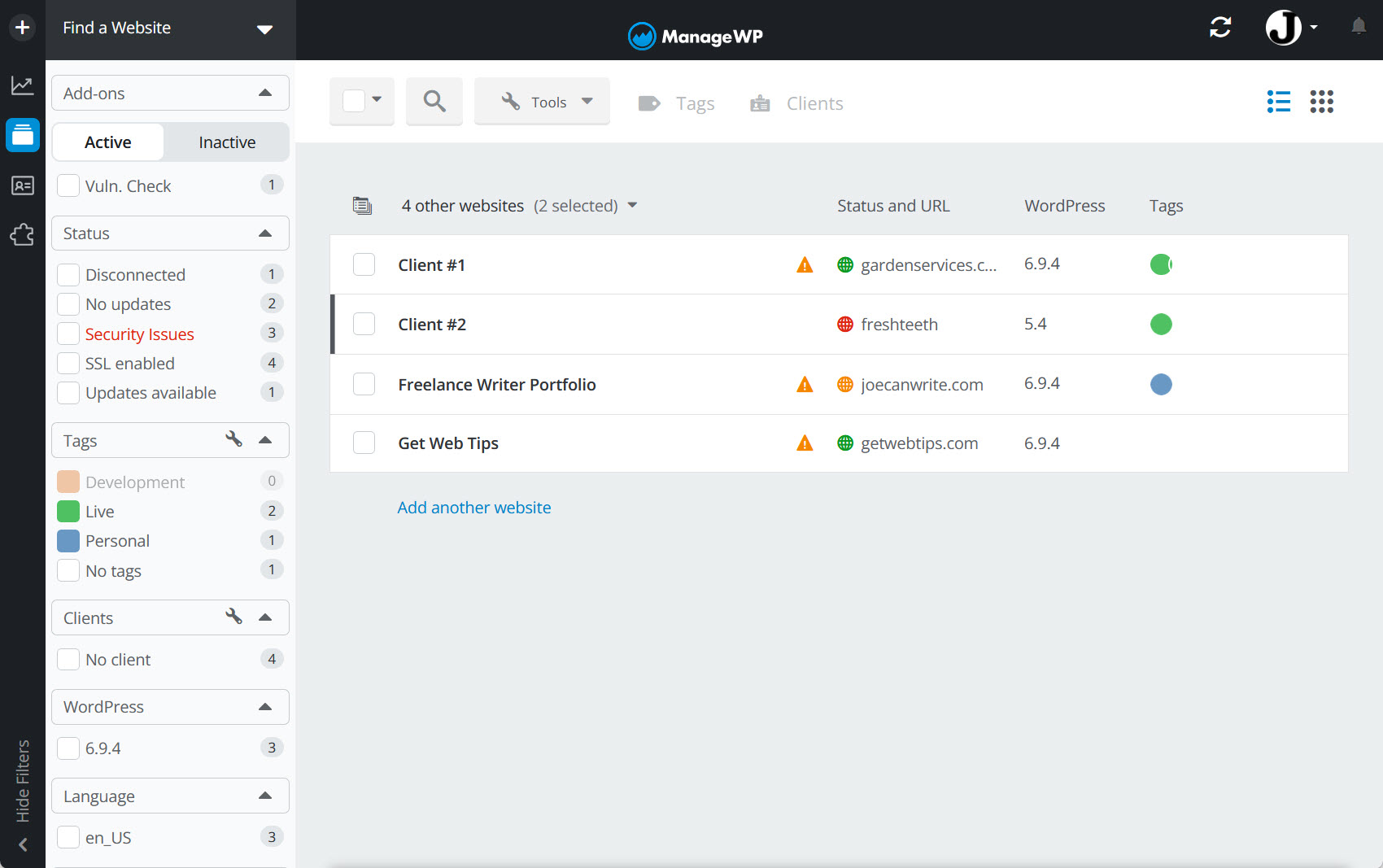
ManageWP is one of the longest-established WordPress management platforms and covers uptime monitoring, performance checks, security scanning, backups, and updates across multiple sites from a single dashboard.
The core dashboard is free, with most of the useful monitoring and maintenance features sold as paid add-ons priced per site per month. This offers flexibility, but costs can add up as your portfolio grows.
Pros:
- Mature platform with a long track record
- Flexible add-on model lets you pay only for what you use
- Solid uptime monitoring with configurable check frequency
- Patchstack vulnerability detection is included on all sites, with Vulnerability Protection available as a paid add-on for virtual patching and hardening
Cons:
- Per-site add-on pricing scales unfavorably for larger agencies
- Interface feels dated compared to newer competitors
Pricing: Free dashboard, with monitoring and performance add-ons priced per site per month, with a $150/month all-in-one bundle covering 25–100 websites.
MainWP
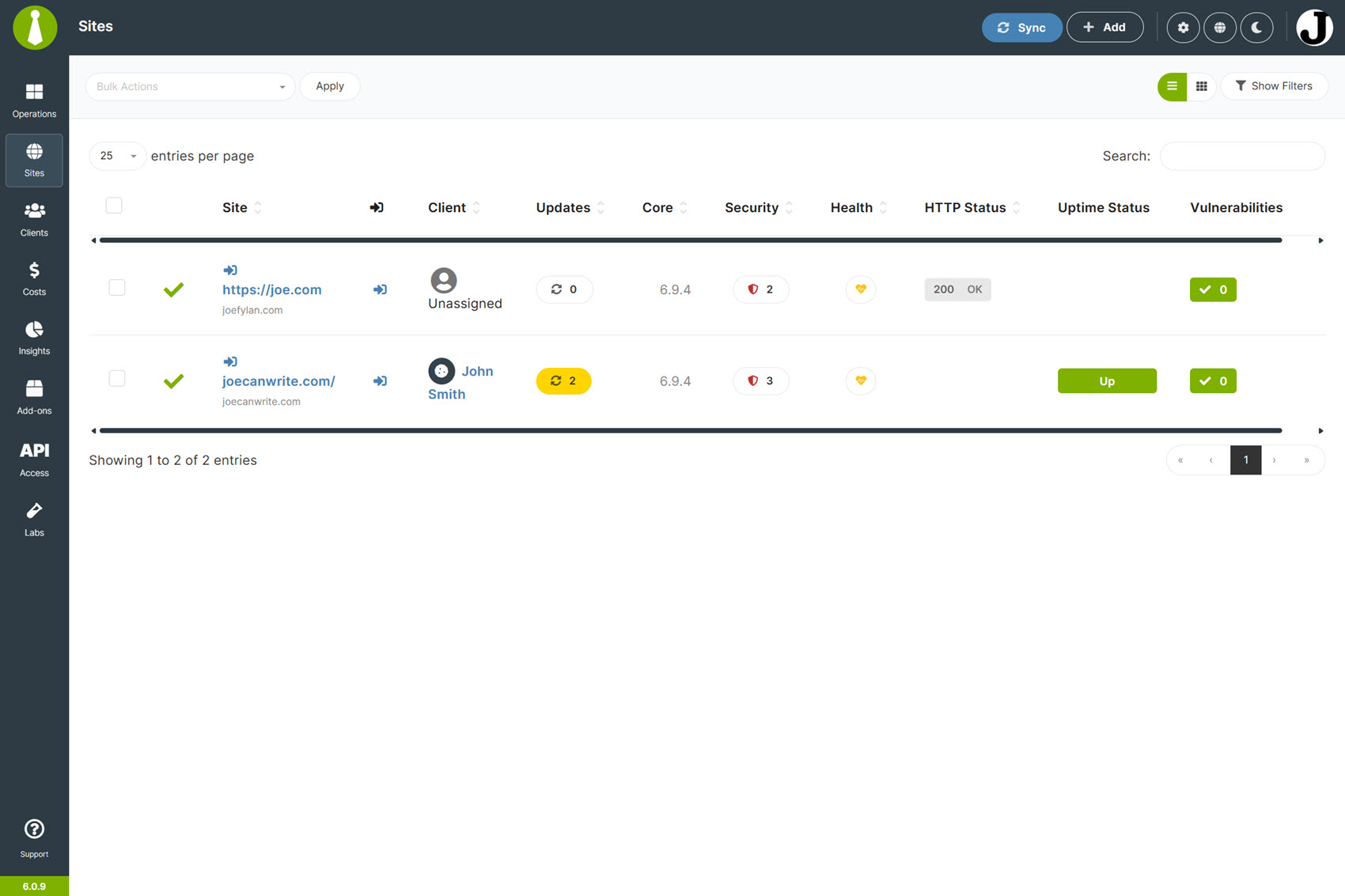
MainWP takes a different approach by being self-hosted — you install it on your own WordPress site, and it becomes the dashboard for managing every other site you add. Since the monitoring data remains on your infrastructure, MainWP will appeal to agencies seeking full control.
The core plugin is free and covers the basics, with extensions adding advanced monitoring, reporting, and integrations.
Pros:
- Self-hosted, so all monitoring data stays under your control
- Generous free core product with no per-site pricing
- Strong community and plenty of available extensions
- Vulnerability Checker included free (powered by NIST’s NVD database); Patchstack and Sucuri integrations available but require paid subscriptions with those services
Cons:
- Setup is more technical than cloud-based alternatives — you install the dashboard plugin on a host you manage, plus a connector plugin on every child site, and ongoing maintenance (including the server) is your responsibility
- Feature access depends on which paid extensions you buy
Pricing: Free core plugin, paid extensions, and a Pro option that includes all extensions and use on unlimited sites, from $199/year.
WP Umbrella
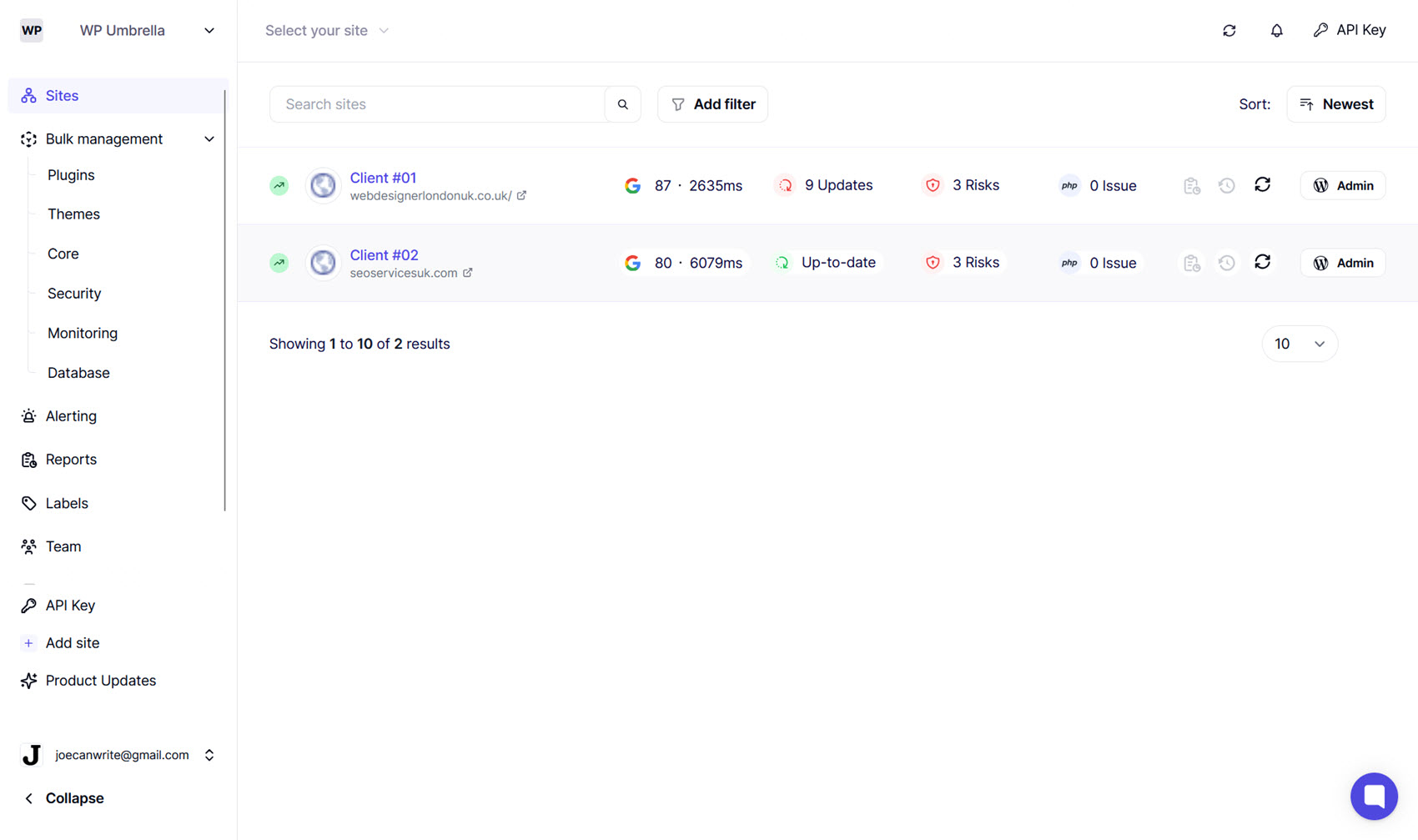
WP Umbrella covers uptime, performance, PHP errors, updates, backups, and white-label client reporting in a clean, easy-to-use interface.
Pros:
- Covers monitoring, backups, updates, and reporting in a single per-site plan with no feature tiers
- PHP error tracking is more detailed than most competitors, including file, line number, and backtrace
- Built-in security scanning with vulnerability alerts; Patchstack Site Protect (virtual patching) available as an add-on at $2/site/month
Cons:
- Fewer third-party integrations and a smaller ecosystem than the more established platforms
- Google Analytics integration is limited to reports — no dashboard-level traffic or search data
Pricing: Per-site pricing from $2.19 per site per month, with a free trial available.
UptimeRobot
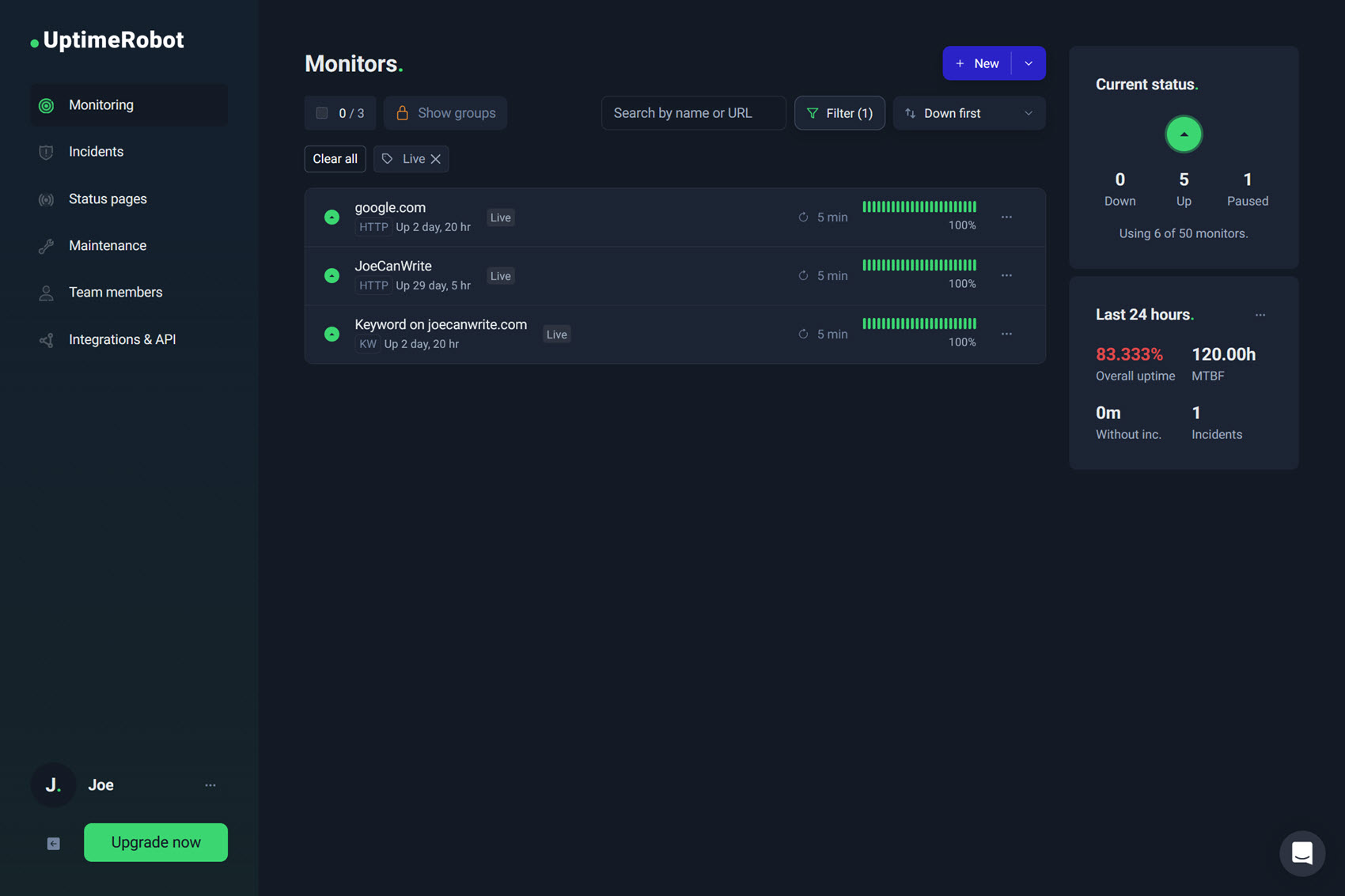
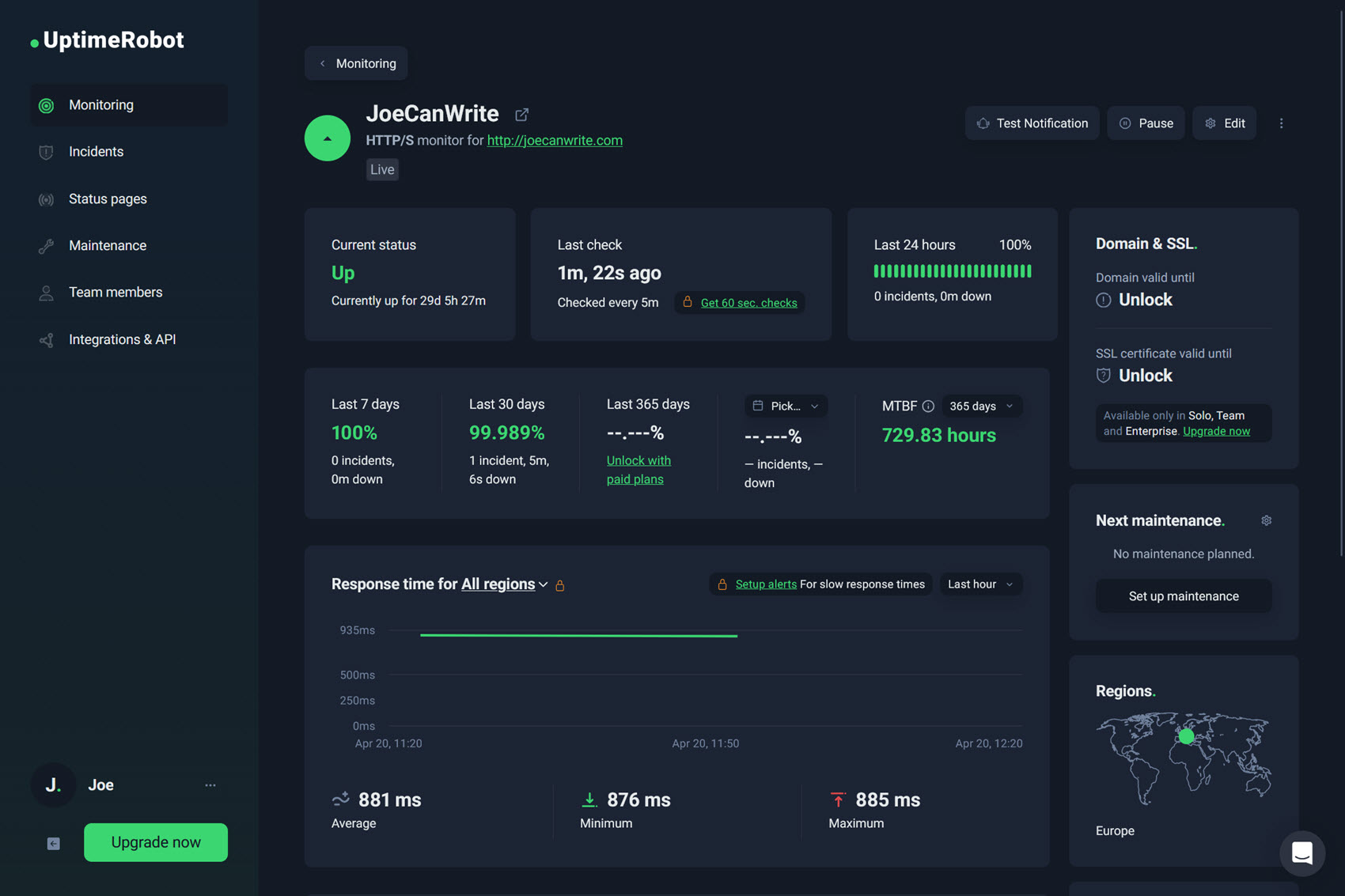
UptimeRobot is included for contrast and is a single-purpose uptime monitoring service rather than a WordPress management platform. If uptime is the only metric you care about and you already have other tools covering the rest, it’s cheap and dependable.
Pros:
- Free tier and affordable paid plans (Solo starts at $9/month with 10 monitors)
- Simple setup and reliable notifications for many channels
- Works for any website, not just WordPress
Cons:
- Uptime only. You’ll need additional tools for security, updates, backups, performance, and reporting
- UptimeRobot’s free-plan terms have shifted more than once in just a few years — restricted to non-commercial use first, then reopened to commercial and client work in June 2026. Worth checking their current Fair Use Policy before relying on the free tier for sites long-term.
Pricing: Free tier available, paid plans start at $9/month.
WP Activity Log
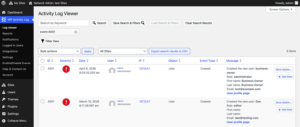
WP Activity Log takes a different approach from the tools above. Rather than monitoring uptime, performance, backups, or updates across a portfolio, it records activity within individual WordPress sites.
This includes user logins, failed login attempts, user account changes, plugin and theme activity, settings updates, content changes, and activity from supported third-party plugins.
Pros:
- Detailed record of user and system activity inside WordPress
- Helps trace plugin, theme, settings, user, and content changes
- Useful for troubleshooting, security investigations, and user accountability
- Can support client reporting and audit requirements
Cons:
- Does not provide uptime, performance, backup, or centralized update monitoring
- Installed and managed on individual WordPress sites rather than used as a management dashboard
Pricing: A free version is available, with paid plans from $139/year.
Comparison table
This high-level comparison covers the core monitoring categories, alert channels, integrations, and a rough price example at 20 sites for reference.
| Tool | Uptime | Performance | Security | Updates | GA / GSC | Alert channels | Approx. price (20 sites) |
|---|---|---|---|---|---|---|---|
| Modular DS | Yes | Yes | Yes (+ Patch & Protect add-on) | Yes | Yes | Email, Slack, WhatsApp, Discord | $34/month* |
| ManageWP | Yes (add-on) | Yes (add-on) | Yes (+ protection add-on) | Yes | GA | Email, Slack | Free–$80/month (varies by add-ons)* |
| MainWP | Yes | Yes (extension) | Yes (free + paid integrations) | Yes | Yes (Pro extensions) | $199/year (unlimited sites)* | |
| WP Umbrella | Yes | Yes | Yes (+ Patchstack add-on) | Yes | GA (reports only) | Email, Slack | $43.80/month* |
| UptimeRobot | Yes | No | No | No | No | Email, SMS, + more | $19/month* |
| WP Activity Log | No | No | Activity and security event logging | Records update activity | No | Email, SMS, Slack, and more on paid plan | Free–$37,42/month ($449 per year)* |
*Pricing varies by currency, billing term, and selected add-ons. ManageWP range reflects free dashboard (no monitoring add-ons) to uptime + security + backups on 20 sites. UptimeRobot range reflects the Solo plan at 50 monitors ($19/month on annual billing). MainWP is self-hosted — hosting costs for the dashboard server are additional. WP Activity Log reflects the Premium plan pricing for up to 25 sites. Check each vendor’s pricing page for current figures.
Which monitoring setup fits your portfolio?
The right tool depends on how much of the maintenance stack you want in one place. If you’re running a growing portfolio and want monitoring, updates, backups, and client reporting in a single dashboard, Modular DS is the strongest all-in-one fit, particularly for agencies that want to turn monitoring data into branded reports without extra steps.
ManageWP suits professionals who want to apply different features to different client sites rather than paying for one bundle across all of them, while MainWP is a good option if keeping everything on your own infrastructure matters to you.
WP Umbrella is a solid choice if you want an all-inclusive per-site plan, and UptimeRobot works as a solid uptime layer when the rest of your stack covers everything else.
For sites where multiple administrators, clients, developers, or contractors have access, it can also be useful to add WP Activity Log alongside your main monitoring platform, as using both can make troubleshooting easier.
Whichever option you choose, the aim is the same: catch issues before clients notice them, and turn the work you’re already doing into something visible and reportable.
For a wider view of where monitoring sits in the day-to-day of running client sites, our WordPress maintenance guide is a useful companion read.
WordPress Site Monitoring FAQs
What’s the difference between uptime monitoring and WordPress site monitoring?
Uptime monitoring tells you whether a site is responding at all, while WordPress site monitoring covers the broader picture, including performance, security, plugin and theme updates, site health, and traffic. This lets you catch problems that don’t take a site offline but still affect clients.
How often should monitoring checks run?
Checks every one to five minutes are standard for uptime, with performance and security scans running daily or weekly, depending on the tool. More frequent checks catch issues faster but can generate more noise, so tuning alert thresholds matters too.
Do I need a monitoring tool if my host already monitors uptime?
Host-level uptime checks are a useful baseline but rarely cover the application layer, so a site can be returning a 200 response while a plugin conflict is breaking checkout or a vulnerability is being actively exploited. A WordPress-specific monitoring tool fills those gaps and gives you data you can share with clients.
Are free monitoring tools enough for managing client sites?
Usually not. Most free tiers come with restrictions. UptimeRobot’s free plan, for example, is recommended for freelancers and small businesses but subject to operational expectations (how the service is used). Free tools also rarely cover the security, update, and performance monitoring that client work really needs. For a portfolio you’re charging clients to maintain, a paid all-in-one is usually a better fit.