Meet the Modular DS MCP and public API
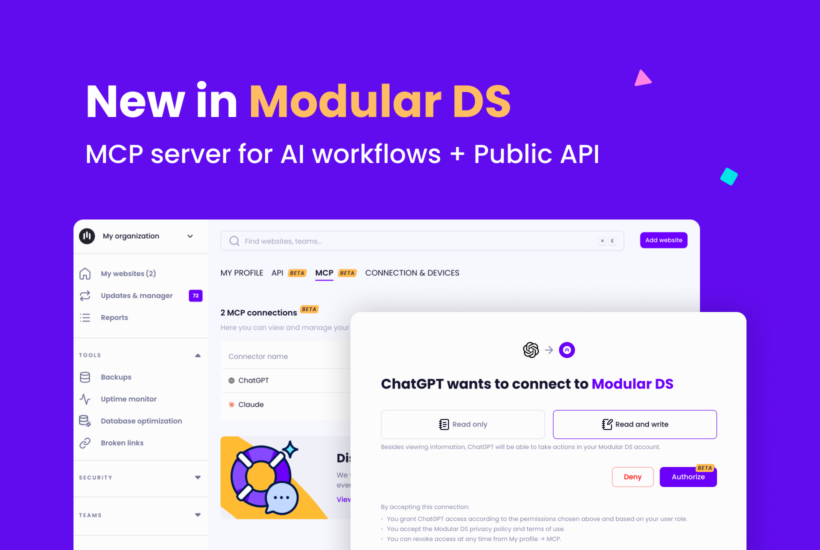
Today, we’re launching two updates that change how you work with Modular DS, for good.
The first is the long-awaited MCP server to manage your WordPress sites from your favorite AI tool. The second is the public API for building your own integrations and automations with Modular DS.
Here’s everything you need to know about both.
Prefer video? Here’s a quick rundown:
Table of contents
Manage your sites from your AI assistant with the Modular DS MCP
What if you could just ask your AI tool which of your Modular DS sites have the most pending updates? And not just ask, but have it apply those updates and handle other maintenance tasks.
That’s exactly what the new Modular DS MCP does. You can now check on and manage your WordPress sites right from the AI tool you already use every day, like ChatGPT, Claude, or Cursor.
For example, you can ask Claude for a list of your sites with detected vulnerabilities, set up a global backup configuration, run a safe update on specific sites, or edit a task on a client report.
It’s no coincidence the MCP was one of the most requested features in the survey we ran with our users this summer.
This is a whole new way of working with Modular DS. Beyond saving you time on maintenance tasks, it can help you better understand what’s happening across your managed sites, easily catch issues that need your attention, and even surface Modular DS actions or automations you didn’t know about or weren’t using.
Now you can just ask your AI assistant. No new installs, no switching context every five minutes.
📖 This guide walks you through connecting the Modular DS MCP to the most popular AI clients.
What you should know before using our MCP
This first version of the Modular DS MCP ships with more than 100 tools covering some of the main tasks you handle daily on the platform: adding and organizing sites, updating plugins and themes, setting up backups, checking uptime, and monitoring vulnerabilities across your sites, among others.
You don’t need to know all of them or which one to use. Just ask your AI in your own words and it’ll pick the right one. However, if you’d rather see what each tool does, they’re explained in this article.
Security and permissions
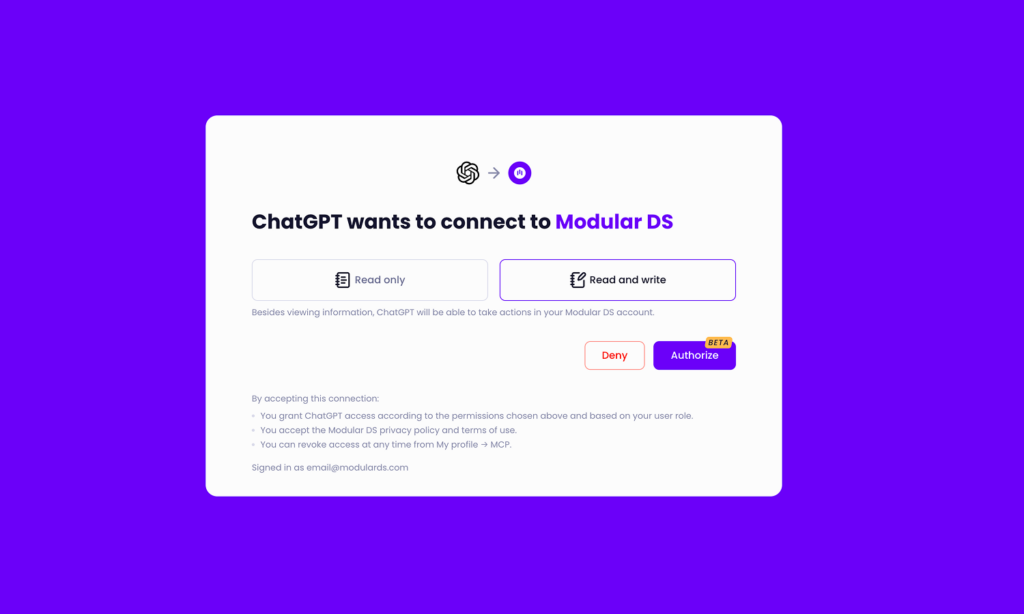
What your AI assistant can see and do depends mainly on two things: (1) your role or access level in Modular DS, and (2) the read and/or write permissions you enable on the connector itself.
Most AI clients, like Claude, let you choose which specific tools exposed by the MCP to allow, deny, or ask (require confirmation before they run).
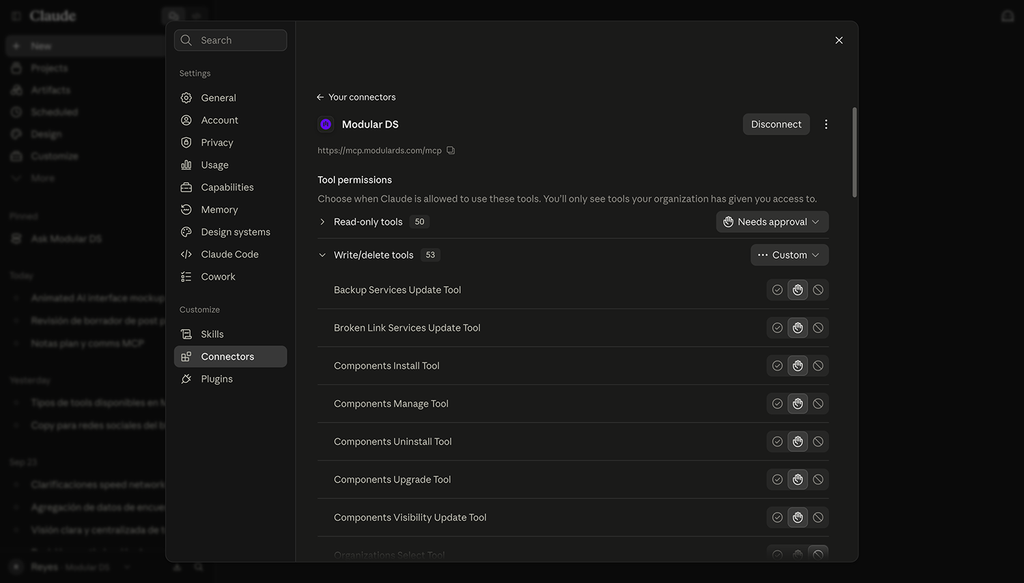
For tools that perform destructive actions, like deleting a site, the Modular DS MCP always explicitly tells the AI to ask for your approval before continuing. That said, AI behavior may depend on the client and model you are using, so it’s always best to check its settings.
If you ever want to revoke access at a user or organization level, you can do that too, right from your Modular DS dashboard.
AI prompting tips for getting better results
Be specific and clear. Your AI understands natural language and knows which tools it has available, so the more specific you are, the better it’ll understand which one to call for what you’re looking to achieve. You can refer to your managed sites by name, URL, or their tag in Modular DS.
For example, “update plugin X on mydomain.com” works better than just “update plugin X.”
Ask for one thing at a time, or a clear sequence of steps. If you need several different tasks done, split them into separate requests rather than cramming everything into one prompt. You can also ask the AI to diagnose something first and then act on it.
For example: “Check which sites tagged “maintenance” have plugin vulnerability alerts, and if there’s a pending security update, apply it using the safe update mode.”
Double-check the result. No AI is perfect, so after it runs an action, ask it to confirm what changed and take a quick look yourself in the Modular DS dashboard to make sure everything went the way you expected.
💡 You’ll find more example prompts to get started on this page.
Automate and integrate with the public API
With this release, we’re also launching a public API that lets you bring Modular DS functionality into other tools so they can work together.
This is especially useful for agencies, dev teams, or hosting providers who want to integrate Modular DS data into their own applications or dashboards, or for setting up automation workflows with tools like n8n, Zapier, or Make.
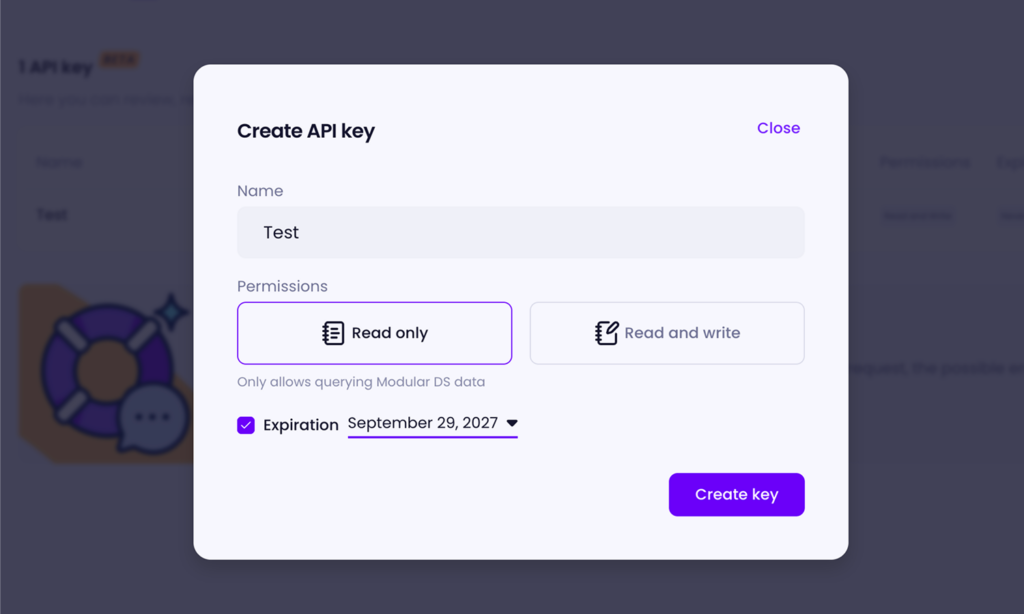
To get started, generate your API keys from your Modular DS account settings and follow our docs.
Help us build what’s next
Both the MCP and the API are available in beta on all Modular DS plans, with no usage limits for as long as the experimental phase lasts, through the end of the year.
Over the coming weeks, as we hear your feedback on using the MCP, we’ll keep improving it and adding more tools.
The goal is for you to eventually do everything you do today in the Modular DS dashboard from your AI assistant, or even build your own version of Modular DS outside our platform.
Give it a try, let us know what you think, and help us shape the next steps.
Useful resources