Best WordPress backup plugins for client site maintenance

If you’re managing multiple client sites, you need a reliable way to back them up and quickly restore them when something goes wrong.
Backing up each site separately can work at first, but once you’re managing a portfolio, centralized management makes monitoring and restoring much easier.
This guide covers what to look for in a WordPress backup plugin and compares reliable options for site maintenance at scale.
Table of contents
What to look for in a WordPress backup plugin
There are some excellent free and paid WordPress backup plugins. However, if you’re managing sites for clients, you have some needs that aren’t as widely covered.
To help you choose the right tool for your workflows and needs, here are some criteria worth considering.
Backup frequency and scheduling flexibility
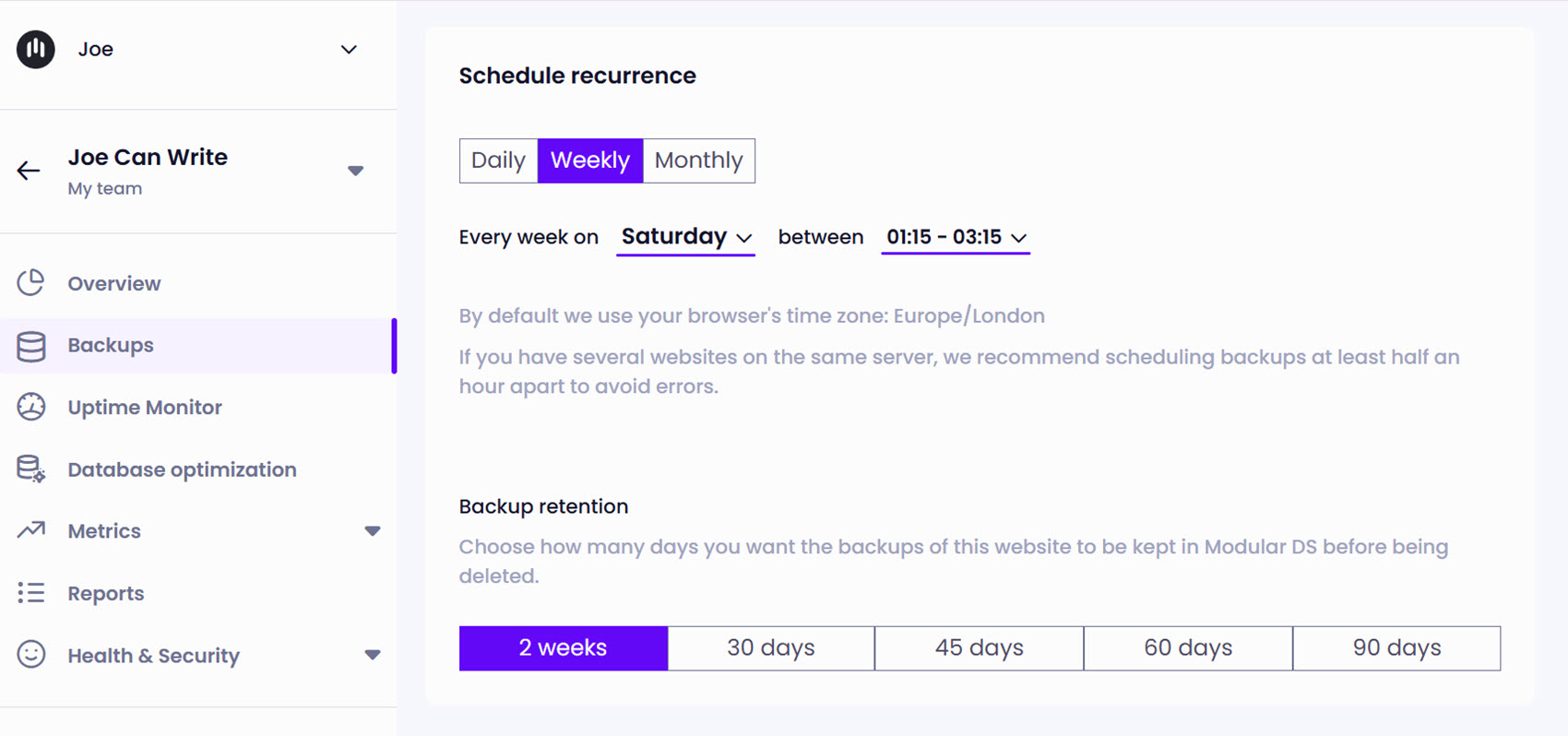
The best backup tools work automatically and let you create backups on demand. This is useful before making major changes, such as installing plugins or updating themes.
Common backup creation intervals include:
- Realtime/continuous: Backups are triggered by site changes (posts published, products added, orders placed). This is essential for eCommerce stores where losing even an hour of orders would cause serious problems.
- Hourly: Useful for sites with constant content updates, but overkill for most sites.
- Daily: Suitable for active blogs and business sites, balancing protection with server resource use.
- Weekly: Sufficient for static business sites or personal projects that rarely change.
- On-demand/manual: Lets you create a backup before making major changes.
For most sites, daily or weekly schedules with on-demand options work best. However, if you manage eCommerce sites, then a higher frequency is required. Ideally, you want to set backups to run during low-traffic periods to minimize server load.
Types of backups
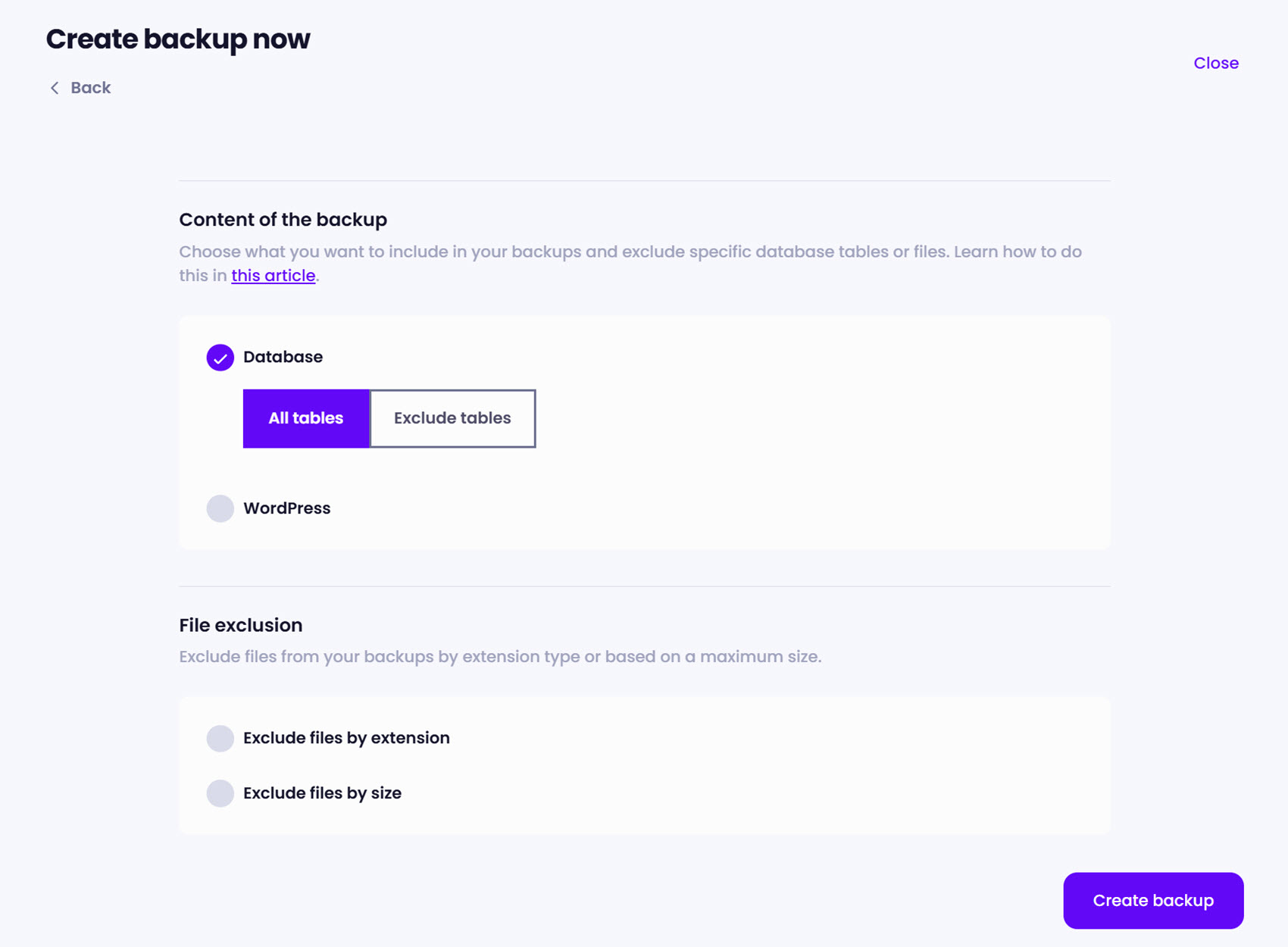
Understanding backup types helps you balance thoroughness with efficiency:
- Full backups: Full backups include a complete site snapshot and are straightforward to restore, but they take longer to create and may affect site performance when running.
- Incremental backups: Only changes since the last backup are saved, making frequent backups faster and more storage-efficient, especially for large sites.
- Database or file-only backups: Backing up the database (content, settings, orders, form entries) and files (themes, plugins, media) on separate schedules can be more efficient when content changes regularly, but design and code rarely do.
A common approach is to run full-site backups weekly and daily incremental backups, with the ability to perform partial restores when needed.
Restore process and reliability
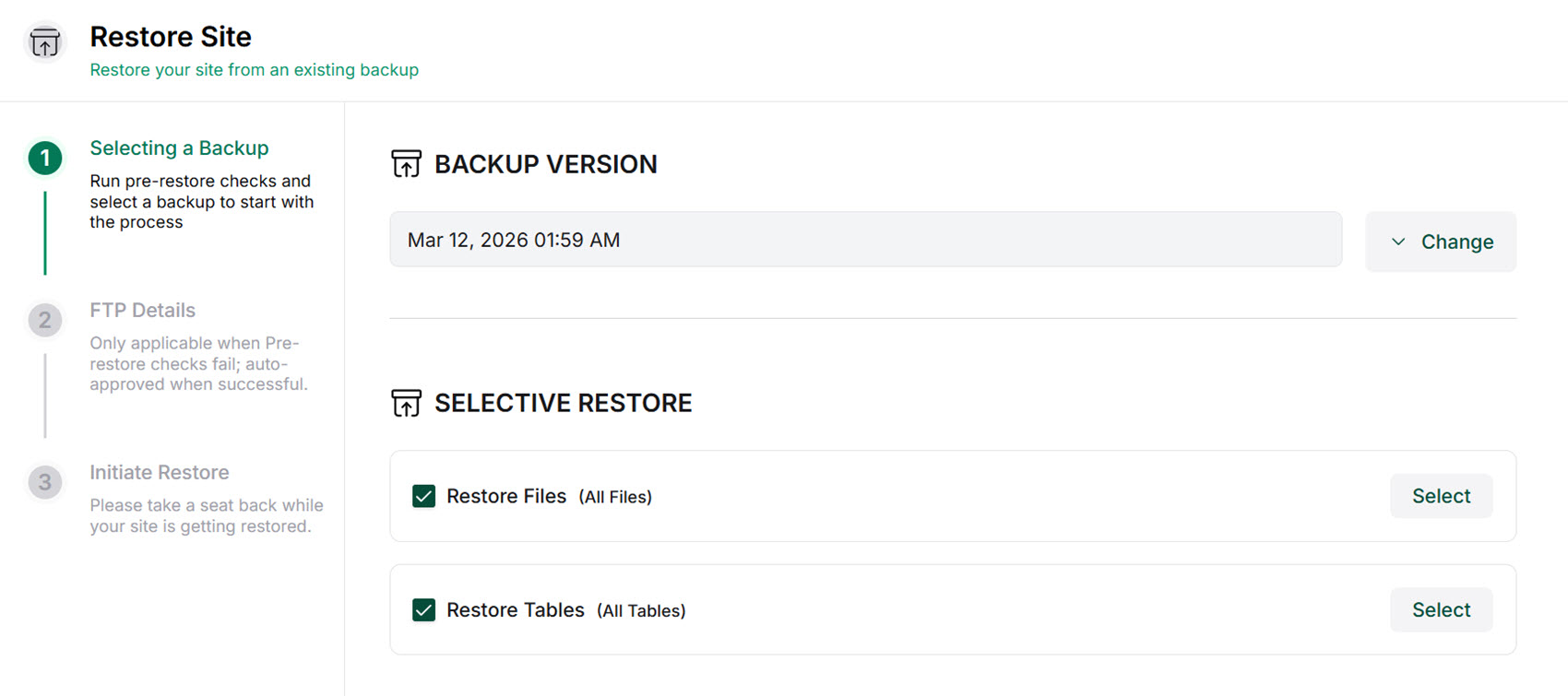 A backup is only useful if you can actually restore it. Restore processes vary by tool, and in practice, restore reliability often matters more than backup features.
Here are a few things to look for:
- One-click restores: Sites can be quickly restored with a single click.
- Disaster recovery restores: Sites can be restored even if the WordPress dashboard is unavailable, usually via an external dashboard, a standalone installer, or a manual restore (SFTP/SSH plus a database import).
- Partial restore options: Ideal for restoring part of a site without overwriting the rest.
- Test or preview functionality: Restore to a staging environment to verify a backup before changing the live site.
The more flexible your restore options, the better prepared you’ll be for different recovery scenarios, especially when speed matters and you need to prevent data loss.
Storage location and security
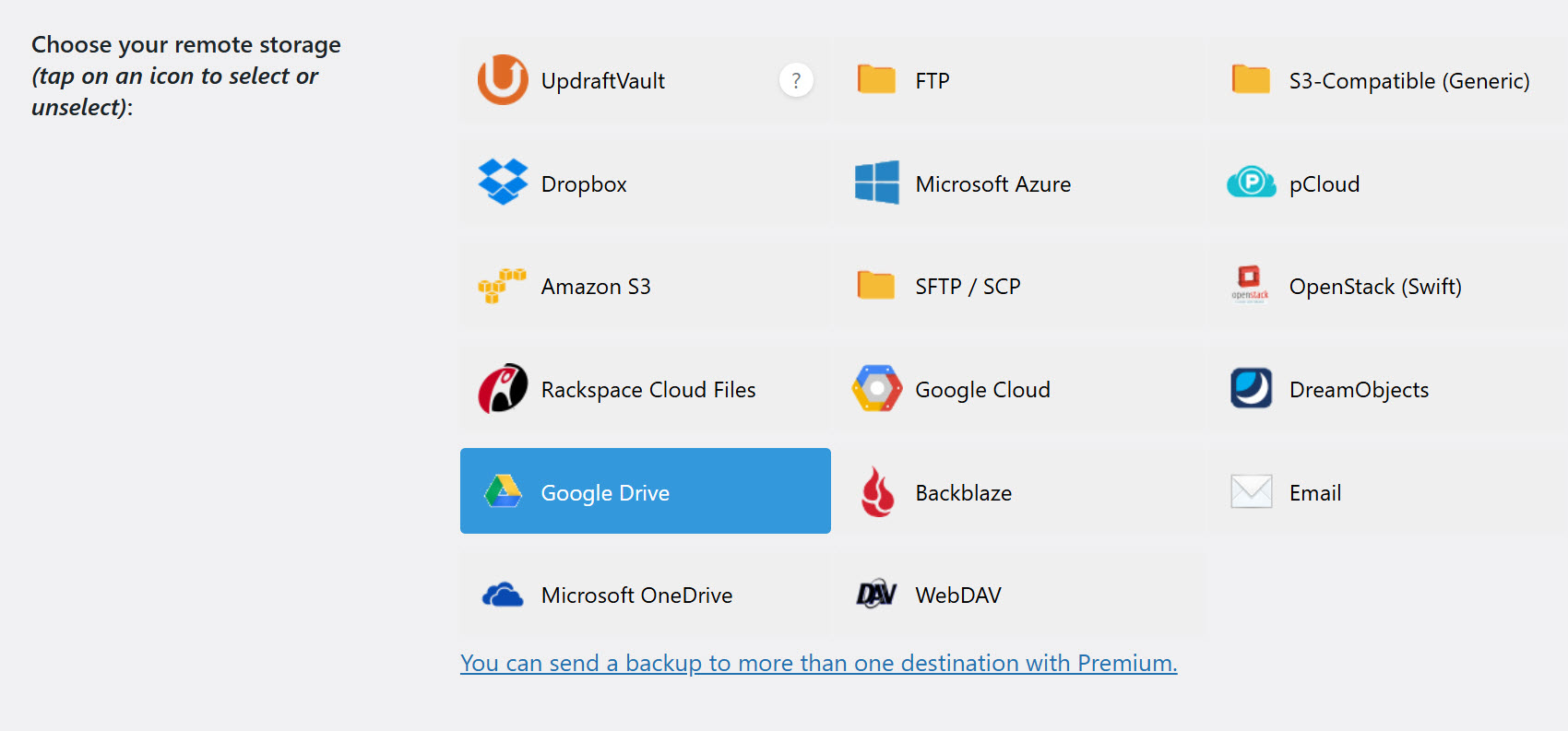
Backup storage should protect your site against human error, outages, and security issues. That means storing backups separately from your site, so they’re not affected by whatever caused the problem.
- On-site (local server) storage: Creating and restoring backups on the same server as the site can be quick, but you can lose both the site and its backups if the server fails, goes offline, or gets hacked.
- Off-site (cloud) storage: Sending backups to third-party services like Dropbox or Google Drive keeps backups separate from the site. Just make sure you’re set up to receive alerts if the integration stops running.
- Managed storage: Some tools include their own tightly integrated cloud storage, making restores smoother.
For client sites, backups should be stored off-site, whether that’s via cloud storage integration or the tool’s own storage. Storage should be secure and meet client requirements, including GDPR when relevant.
Ease of use and workflow integration
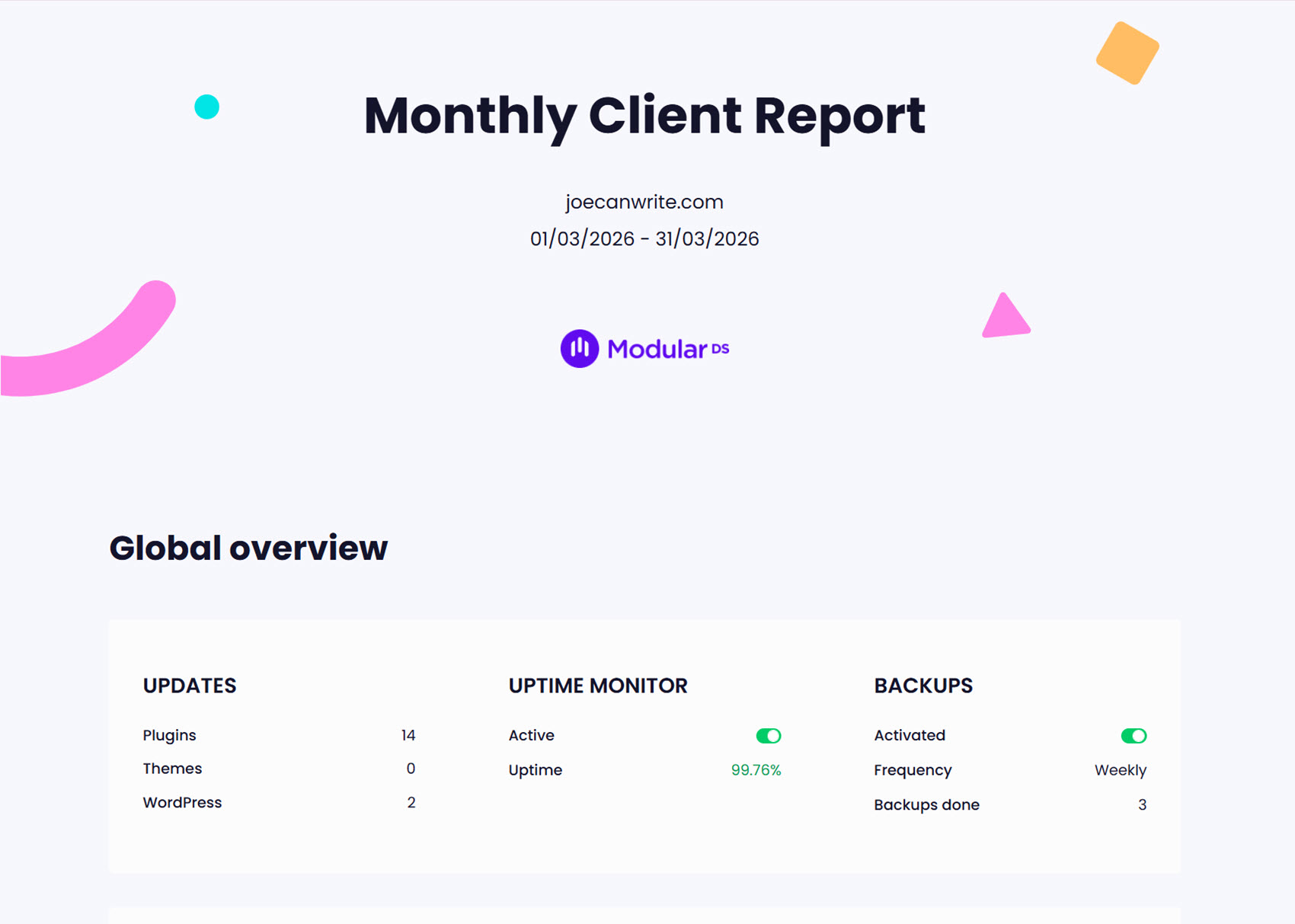
The best WordPress backup solution is one that’s easy to use and fits into your workflow without creating extra admin overhead.
Some points to consider include:
- Setup complexity: Some tools work right away with sensible defaults, while others require significant configuration. That setup time adds up quickly when managing multiple client sites.
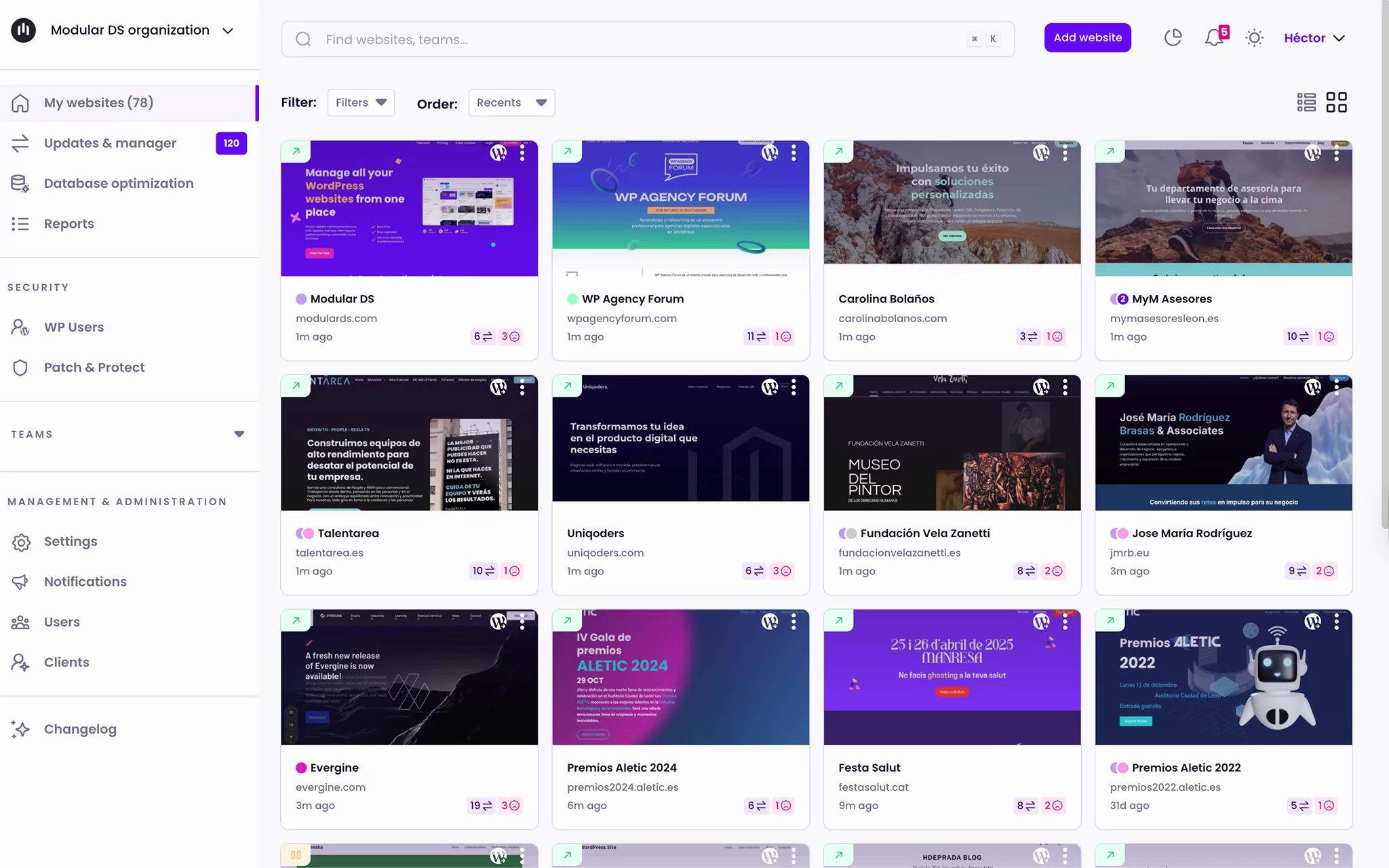
- Multi-site management: Managing backups site-by-site through separate WordPress dashboards is slow and error-prone. Centralized dashboards make monitoring and management more convenient.
- Client reporting: Tools that generate maintenance reports that include backup activity help you demonstrate the value of your services.
Look for tools that are quick and easy to set up at scale and fit into your workflow.
Plugin maintenance and support
Backup tools need to stay compatible with WordPress updates, PHP versions, and changing hosting environments.
Points to think about include:
- Update frequency: Regular releases indicate ongoing security, compatibility, and feature improvements.
- Support options: Free plugins rely on community forums, but the live chat and email support options common with paid services are recommended when managing client sites.
- Compatibility: Backup solutions can clash with certain hosting setups, such as managed WordPress hosts that run their own backup systems or restrict server resources.
Look for a solution that’s regularly updated, well supported, and widely compatible with your client site’s environments. An easy way to see when something’s gone wrong, such as email alerts or dashboard notifications, is essential, too.
Comparison of WordPress backup plugins
Let’s look at how some popular backup solutions compare based on the criteria we just covered.
UpdraftPlus
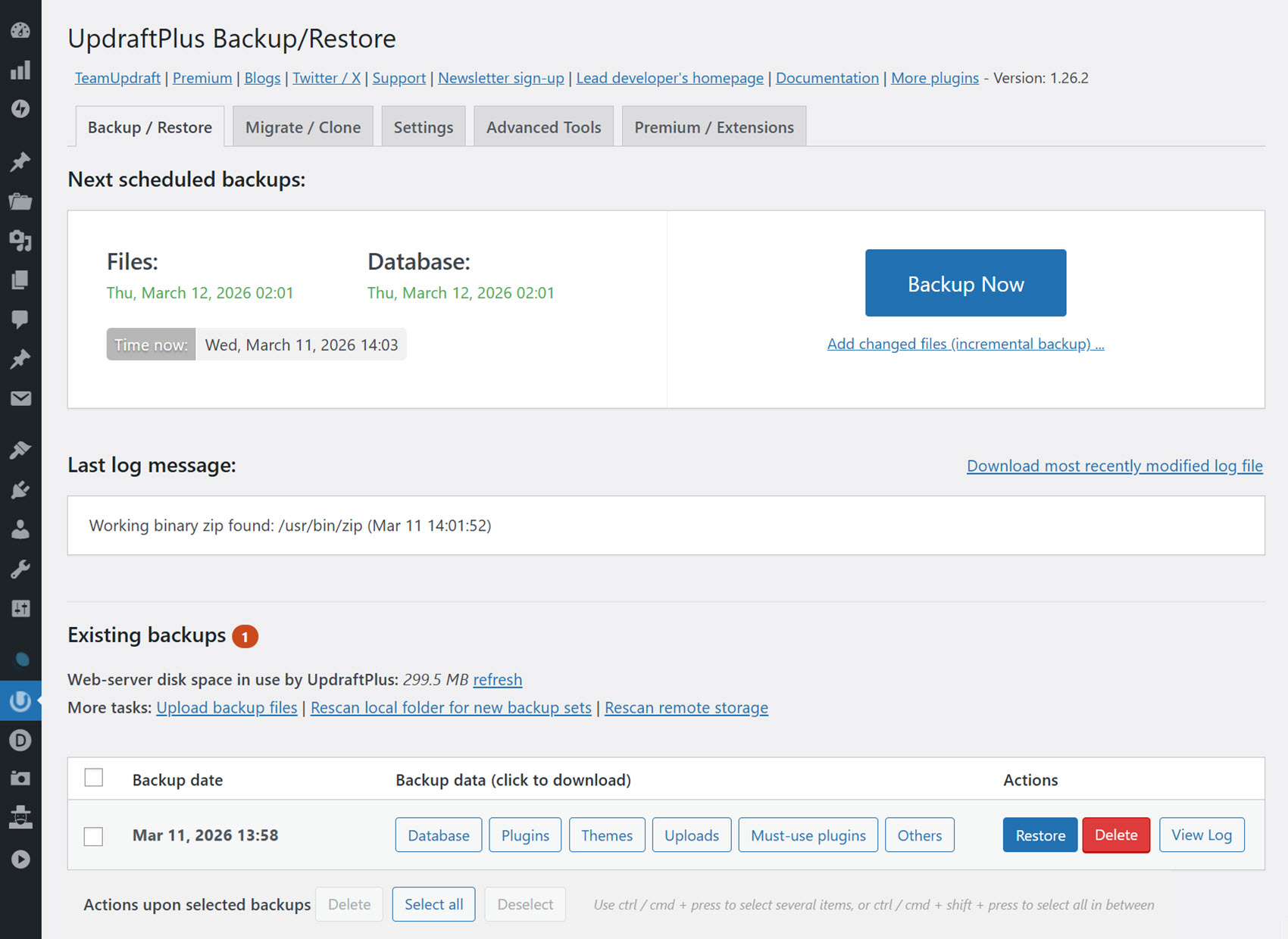
UpdraftPlus is a popular choice for freelancers or agencies managing a few client sites who want a strong free option with optional premium upgrades. The companion UpdraftCentral lets you manage the backups for multiple sites through a centralized dashboard.
Key features: Scheduled backups, multiple cloud storage options, one-click restore, and incremental backups (paid feature).
Pros:
- Feature-rich free option that’s suitable for most sites.
- Wide range of storage integrations (Dropbox, Google Drive, S3).
- Separate database and file backups allow partial restores.
- Supports manual restores outside of WordPress admin.
Cons:
- Free version limited to one storage destination.
- Incremental backups require a paid plan.
Pricing: Free with paid options starting from $70/year for 2 sites.
BackWPup
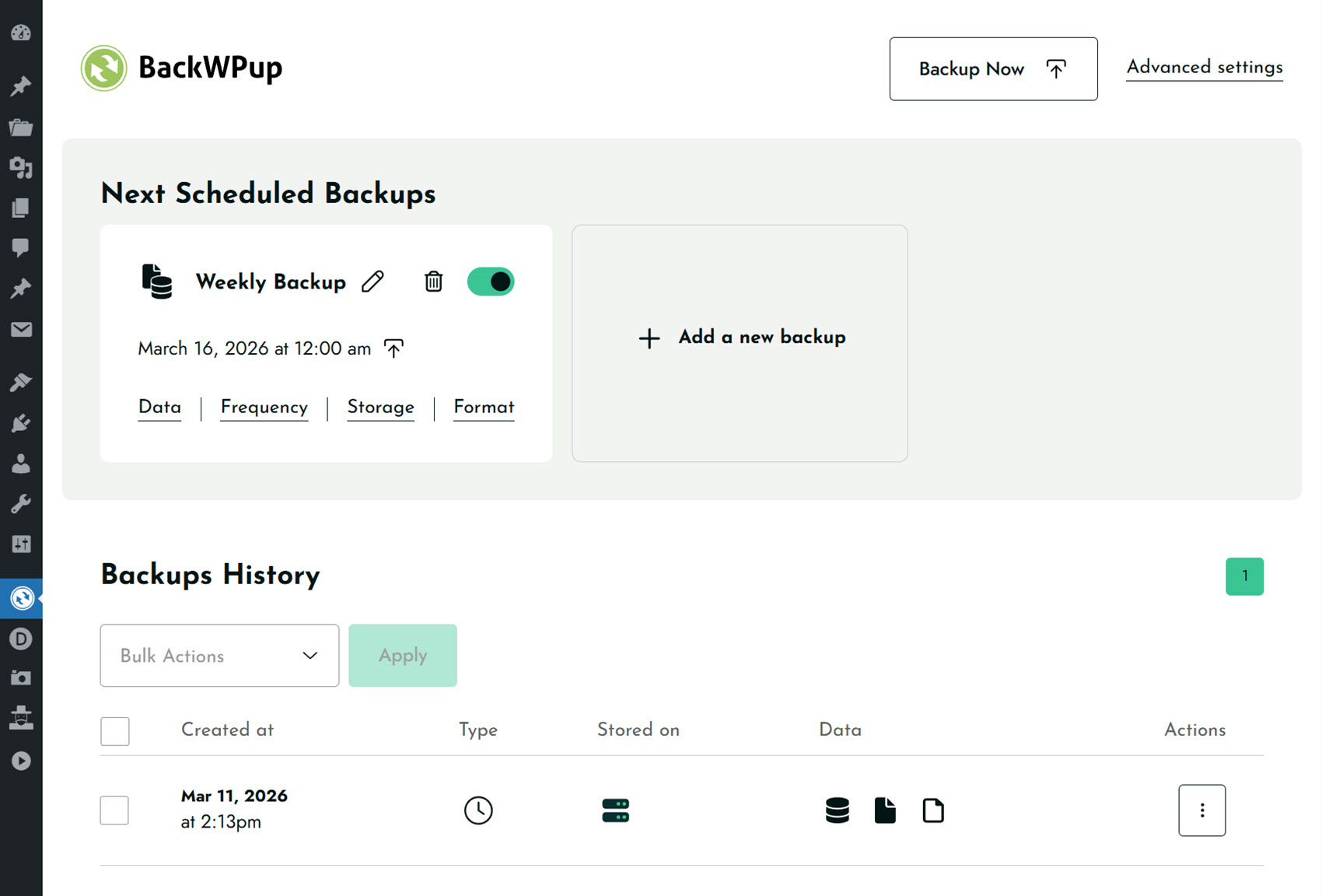
BackWPup is ideal if you want granular backup control in a reliable free plugin and may need to restore sites outside the standard WordPress admin. It fits situations where you value detailed backup customization, but lacks a true centralized multi-site management solution.
Key features: Scheduled backups, multiple cloud storage options, one-click restore, and incremental backups (paid feature).
Pros:
- Comprehensive free version.
- Detailed control over what gets backed up.
- The standalone restore app works without WordPress access (Pro).
- Backup reports sent via email.
Cons:
- Incremental backups require a paid plan.
- The standalone restore app is only available on paid plans.
- No centralized multi-site management.
Pricing: Free with paid options starting from $49/year for 2 sites.
Duplicator
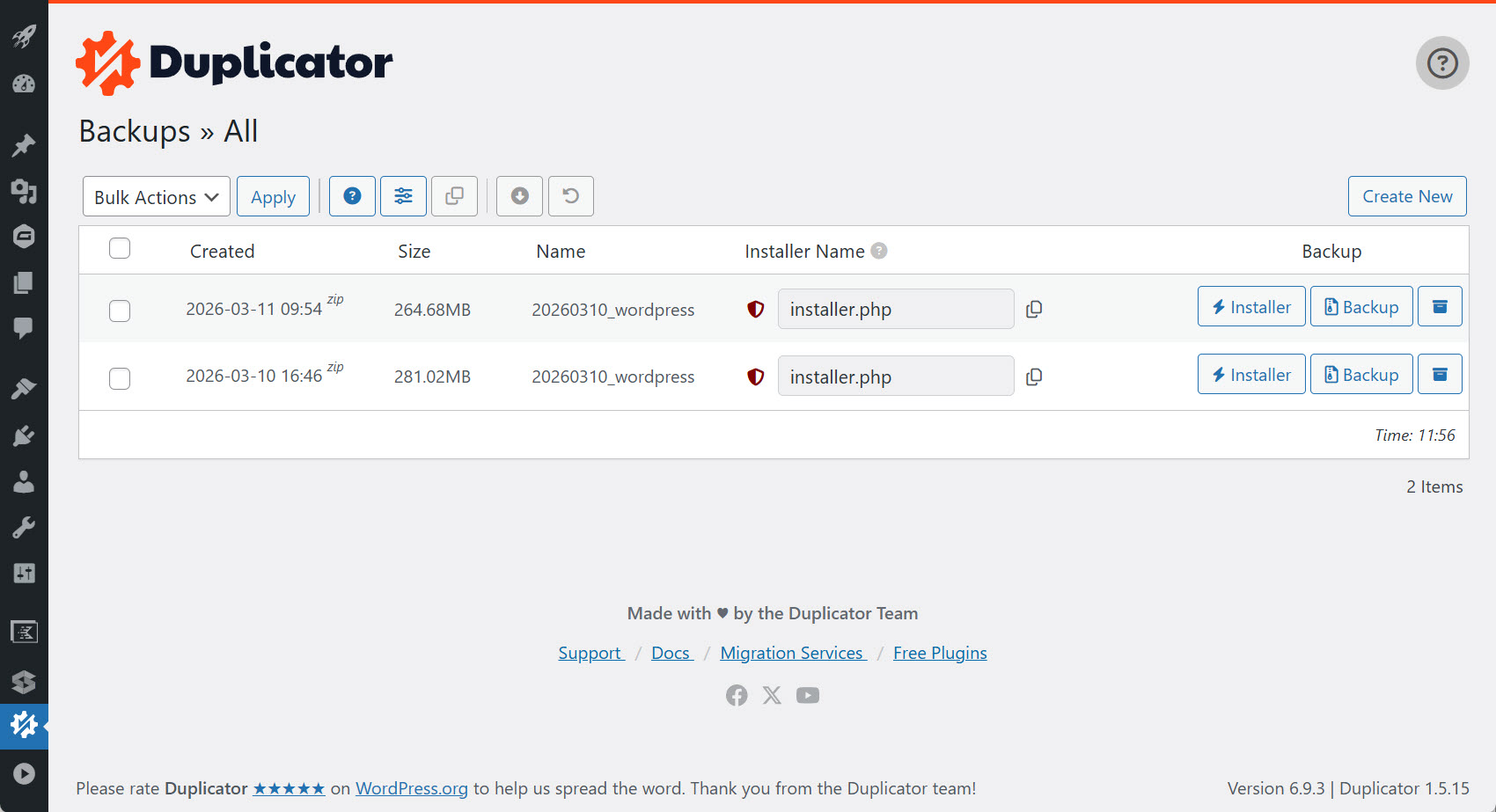
The free version of Duplicator is more of a migration tool than a WordPress backup solution. It’s good for creating backup packages with standalone installers for use when the WordPress admin is inaccessible, but the free version doesn’t support scheduled backups or cloud storage integration.
Key features: Backup packages with standalone installers, migration wizard, scheduled backups (paid), and cloud storage (paid).
Pros:
- Paid plans include many useful backup features.
- You can restore backups independently of the WordPress admin.
- Useful site migration functionality.
- Good for moving sites between staging and production environments.
Cons:
- The free version doesn’t support scheduled backups.
- No cloud storage integration in the free version (local backups only).
- 500MB backup size limit in the free version.
- No centralized multi-site management.
Pricing: Free with paid options starting from $69.30/year for 2 sites (currently reduced from $99/yr).
BlogVault
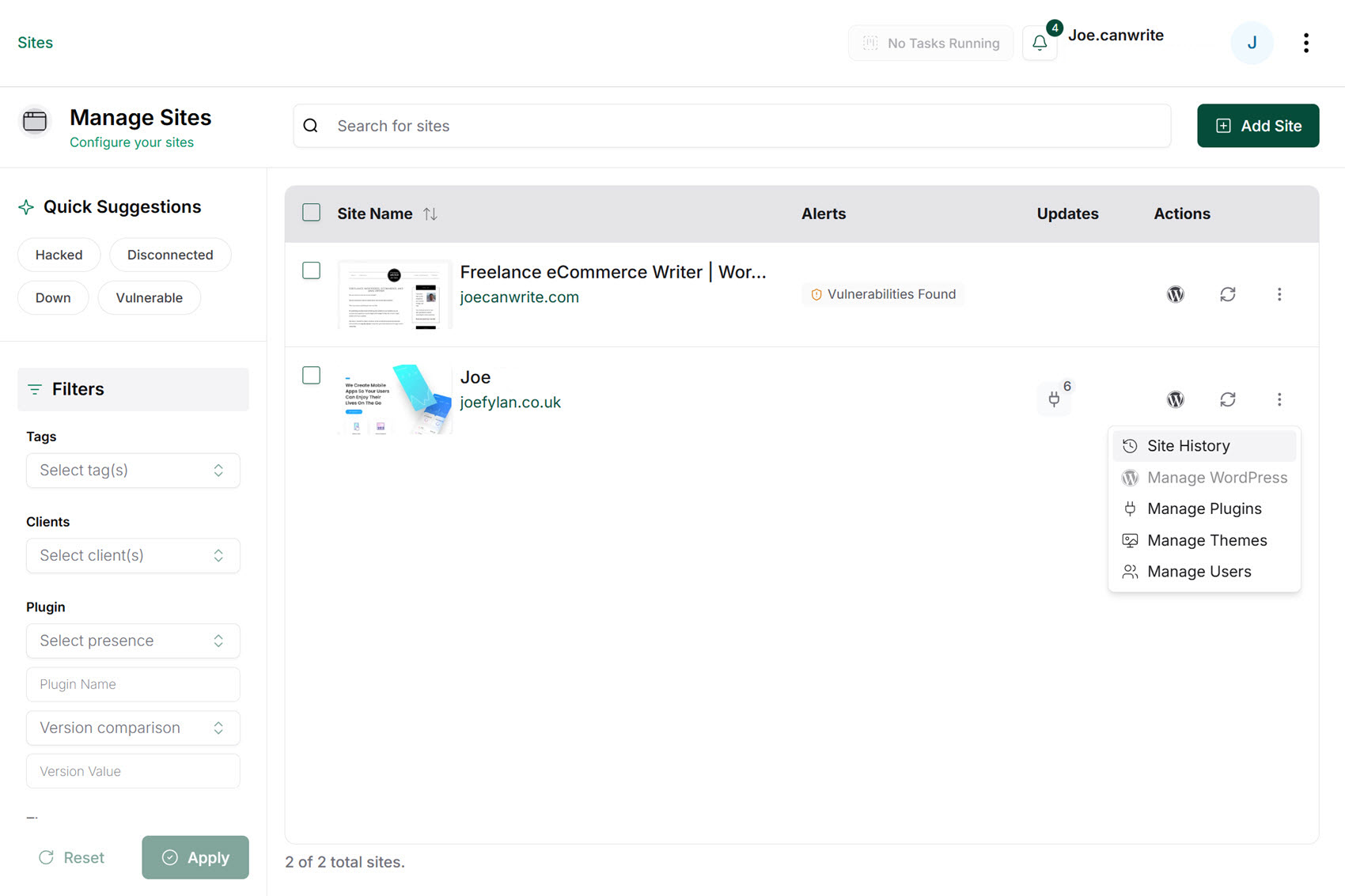
BlogVault is ideal for anyone who wants a robust hosted service for managing backups for multiple sites through a central dashboard. There’s no free plan, but there is a seven-day free trial.
Key features: Lots of restore options, high backup frequencies, a site change log for restoring to specific points, cloud-based GDPR-compliant storage, and site migration tools.
Pros:
- Backup, plugin, and theme management for multiple sites via a central dashboard.
- Backups are created and stored on BlogVault’s cloud infrastructure.
- Real-time and one-hour backup frequencies (top plan only).
- Staging features for testing backups.
- Can restore backups to inaccessible sites.
Cons:
- Backups can be downloaded but not automatically sent to third-party cloud services.
- No free option — 7-day free trial.
Pricing: Starts at $49.50/year for 1 site (currently reduced from $99/yr).
Modular DS
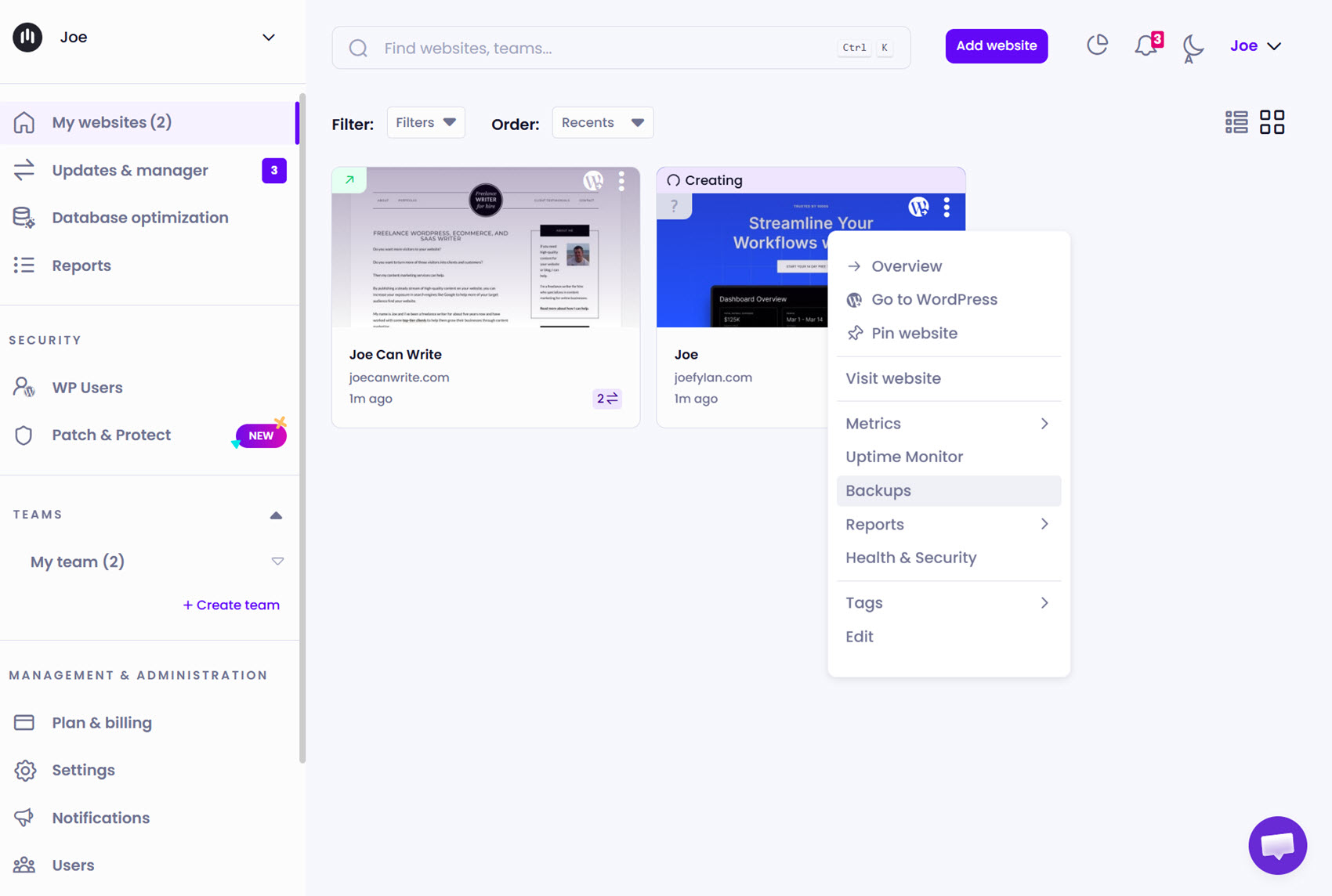
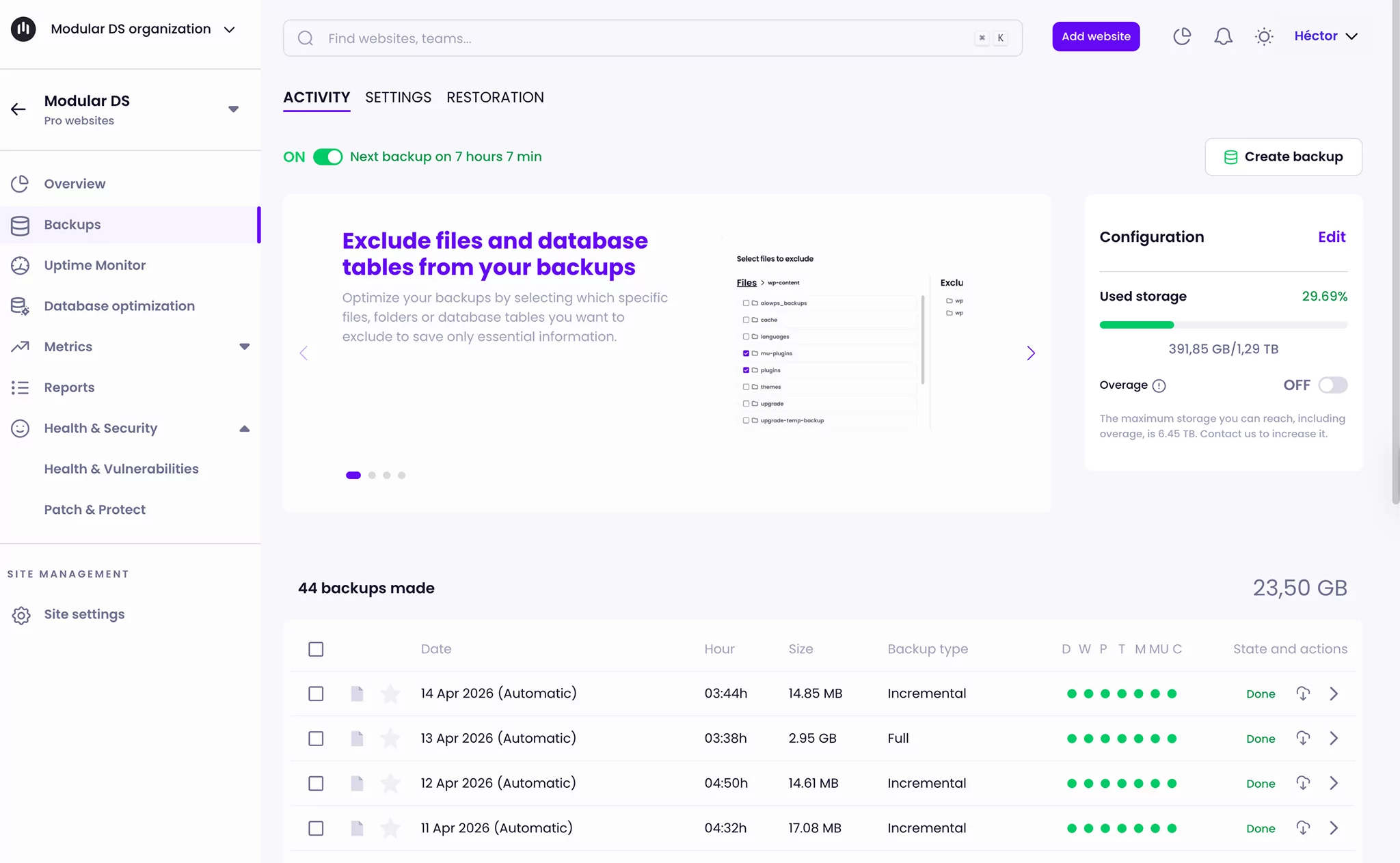
Modular DS automates the WordPress maintenance tasks for multiple sites via a central dashboard. In addition to handling backups, Modular DS covers uptime monitoring, updates, database optimization, and site health monitoring. Scheduled and ad-hoc reports can be generated, making it easy to demonstrate your value to clients.
Key features: Central dashboard for managing multiple sites, hosted backups, flexible backup schedules and types, cloud-based GDPR-compliant storage, and selectable data regions for more flexibility.
Pros:
- Automated and on-demand backups run on a hosted service.
- Full and incremental backups, plus direct restores from the platform or in one click, without needing WordPress admin access.
- File exclusion options by extension or size help keep backups lighter.
- Multiple users can manage sites through the dashboard.
- Automated client reports include backup activity.
Cons:
- Backups can be downloaded but not automatically sent to third-party cloud services.
- No free option — 14-day free trial.
Pricing: Starts at $16/month for 10 sites.
Jetpack VaultPress Backup
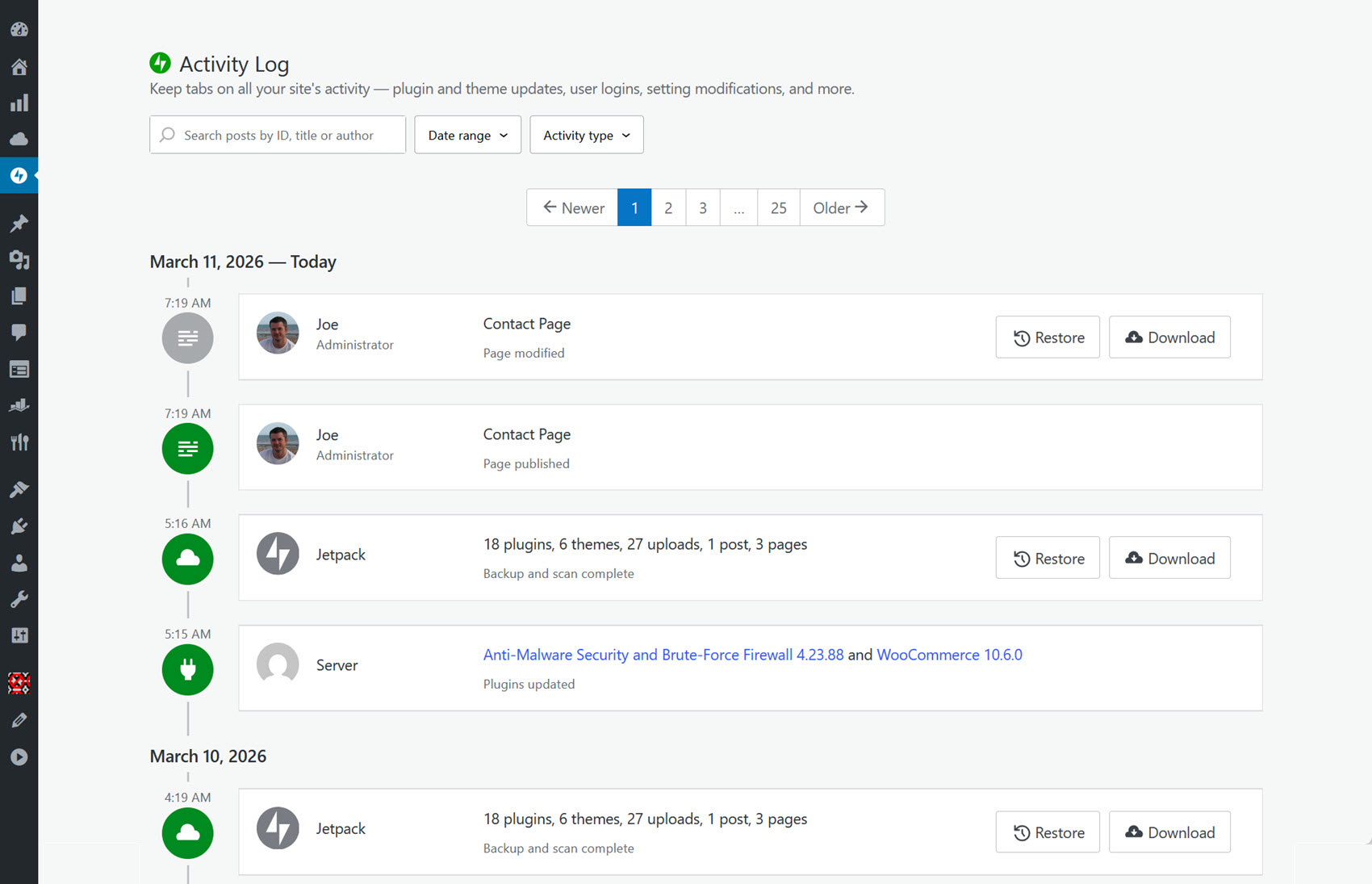
Jetpack VaultPress Backup creates real-time, scheduled, and one-time backups for WordPress sites and stores them on Jetpack servers. Backups are managed site-by-site rather than through a central dashboard, but the Activity Log feature offers impressive restore flexibility.
Key features: Full and partial restores, real-time backups, built-in cloud backup storage, and granular control over restoring partial backups.
Pros:
- Activity log for restoring to specific points in time.
- Real-time backups capture changes as they happen.
- Stores backups in the Jetpack cloud service.
- Can restore backups when the WordPress dashboard is inaccessible.
Cons:
- Backups can be downloaded but not automatically sent to third-party cloud services.
- No free option.
- No centralized multi-site management.
Pricing: Starts at $9.95/mo, billed yearly for 1 site (currently $4.95/mo due to 50% off the first year).
Backup plugin quick comparison table
| Tool | Starting price | Scheduled backups | Incremental backups | Centralized dashboard | Cloud storage integration | Managed storage |
|---|---|---|---|---|---|---|
| UpdraftPlus | Free (paid from $70/yr for 2 sites) | ✓ (Free) | Paid only | ✗§ | ✓ | ✗ |
| BackWPup | Free (paid from $49/yr for 2 sites) | ✓ (Free) | Paid only | ✗ | ✓ | ✗ |
| Duplicator | Free (paid from $69.30/yr for 2 sites)* | Paid only | ✗ | ✗ | Paid only | ✗ |
| Jetpack VaultPress | $4.95/mo for 1 site† | ✓ | ✓ | ✗ | ✗ | ✓ |
| BlogVault | $49.50/yr for 1 site‡ | ✓ | ✓ | ✓ | ✗ | ✓ |
| Modular DS | $16/mo for 10 sites | ✓ | ✓ | ✓ | ✗ | ✓ |
* Duplicator introductory pricing (usually $99/year for 2 sites).
† Jetpack VaultPress introductory first-year pricing.
‡ BlogVault introductory pricing (usually $99/year for 1 site).
§ UpdraftPlus offers UpdraftCentral as a separate dashboard for managing backups across multiple sites.
Modular DS also includes uptime monitoring, update management, and client reporting as part of its maintenance platform.
Choosing the right backup solution
Backups are essential for any website, but they’re critical for client sites you manage.
For freelancers managing a handful of sites, a free plugin like UpdraftPlus covers all the essentials. However, as your business grows, centralized backup management becomes more valuable, even if it requires an investment.
Maintenance platforms, such as Modular DS, let you manage backups for multiple sites through a central dashboard, monitor uptime and performance, streamline updates, and generate reports that help you demonstrate value to clients.
FAQs about WordPress backups
Do I still need a backup plugin if my hosting provider includes backups?
Not always, but it depends on what your hosting provider actually offers. Some hosting backups are limited in terms of frequency, retention, restore options, etc. If backups are part of your WordPress maintenance offering, using a dedicated plugin or site management platform will give you more control and visibility, helping you work more efficiently and deliver a more professional service.
What is the difference between full and incremental backups?
Full backups copy the entire site and are simpler to restore, but they take longer to create and use more storage. Incremental ones only save the changes made since the previous copy, making them faster and more storage-efficient, especially for larger sites, which is why many backup strategies combine both.
How often should I back up a WordPress site?
That depends on how often the site changes. Daily backups are a good fit for active business sites, while weekly backups may be enough for more static websites. However, if you manage online stores with constant changes, you’ll usually want more frequent backups, such as hourly or real-time, to reduce the risk of losing recent data.
Where should I store my backups?
Off-site is usually the safest option for client work. If backups live on the same server as the site itself and that server has a problem, gets hacked, or goes down, you could lose both the site and its backups.