Guide: How to install Google Analytics 4 in WordPress

Is my website (or my client’s website) performing well? How do I know what I need to improve? Based on what data? I’m sure you ask yourself these questions regularly.
Today, we’ll explain how to install Google Analytics 4 (GA4) on your WordPress website, so you have a tool to help you answer them, whether you prefer adding the tracking code manually, using Google Tag Manager, or setting it up with a plugin.
Table of contents
What is Google Analytics?
Google Analytics is one of the most widely used tools for website monitoring and analysis, and it allows you to analyze your website data in detail.
Can you imagine knowing your audience’s characteristics and behavior? How much would you give to know where your traffic comes from? A lot, right? That’s why we’re here today, talking about the tool that will help you uncover these insights and stay in control of what happens on your website or online store.
We don’t want to make this complicated. Our goal is for you to understand it and actually use it. First, keep in mind that Google Analytics doesn’t work on its own: you need to connect it to the website you want to measure.
So stick with us and let’s get started. If you’re here because you want WordPress and the world’s most popular analytics tool to work together, you’re in the right place.
Benefits of installing Google Analytics in WordPress
You can probably guess there are plenty of benefits, right? And yes, you’re absolutely right.
- Track key website metrics like total visitors, new users, traffic sources, engagement time, and conversions.
- Measure your KPIs more accurately with reliable, data-driven insights (instead of guessing).
- Spot what’s not working. For example, identify pages with high bounce rates or weak conversion performance.
- Make smarter optimization decisions by adjusting your content, UX, or strategy based on real user behavior.
- Go deeper when needed by combining GA4 with other web performance tools for more detailed analysis.
- It’s free, so you can start tracking and learning without any upfront cost.
How to connect Google Analytics 4 to WordPress (step by step)
Keep in mind that Google Analytics must be connected to your website so you can collect data about what happens on it.
Let’s see how you can do it easily.
Sign up for Google Analytics 4
First, go to the Google Analytics website and click “Get started today.”
You can use your personal or business Google account if you already have one. If you don’t, click on “Create account” and follow the steps.
Once you log in, you’ll see a screen where you can enter the name you want your account to have.
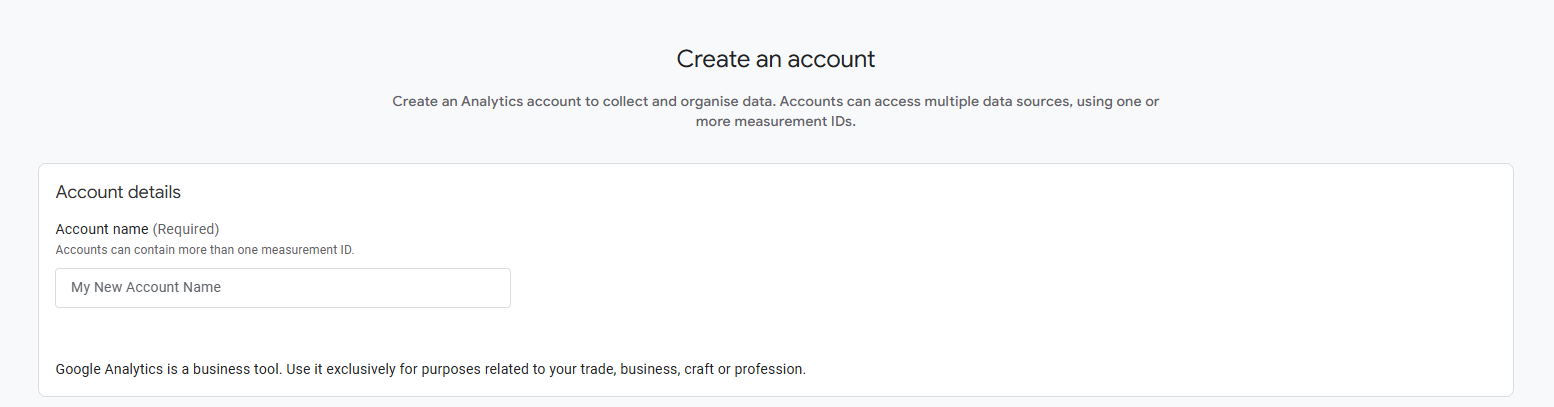
After clicking “Next”, you’ll need to create a property. Make sure you choose a name that clearly identifies your company or business. You can have multiple properties under the same account, and each property will have different data.
To keep things simple, remember to select your time zone, as well as your country and main currency (especially important if you run an e-commerce website).
Next step, you can select your industry, company size, and the reason you’re using Google Analytics.
The final step in the Google Analytics setup is selecting your Business objectives.
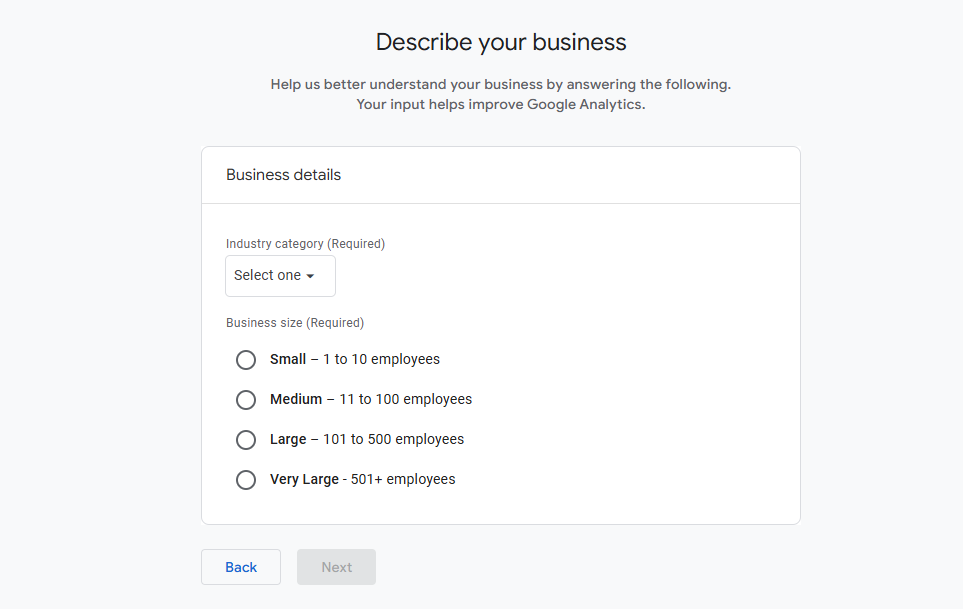
This choice is important because it dictates which pre-made reports Google will pin to your dashboard. You will see several options in the interface:
- Generate leads: Optimized for websites looking to capture user information or registrations.
- Drive online sales: The primary choice for e-commerce, focusing on the checkout journey and revenue.
- Raise brand awareness: Best for tracking reach and how often users interact with your brand content.
- Examine user behavior: Designed for analyzing page navigation and how visitors move through your site.
- Get baseline reports: This is the most flexible option. By choosing this, you get the standard set of reports (acquisition, engagement, monetization, etc.) without any specific filtering.
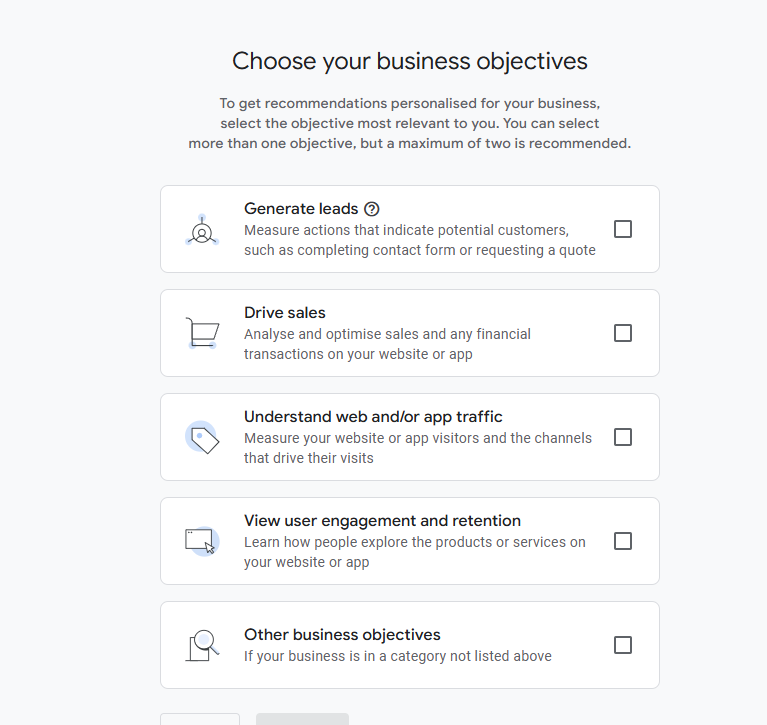
Once you make your selection and click Create, you must accept the Terms of Service. This completes the administrative part of the setup. Your property is now ready, and the platform will immediately prompt you to set up a Data Stream to start receiving information from your website.
Get the tracking code for your website
Now it’s time to connect GA4 to your website.
After you create the property, you’ll see a page with information about the data stream. There you’ll find details such as your stream information and measurement settings.
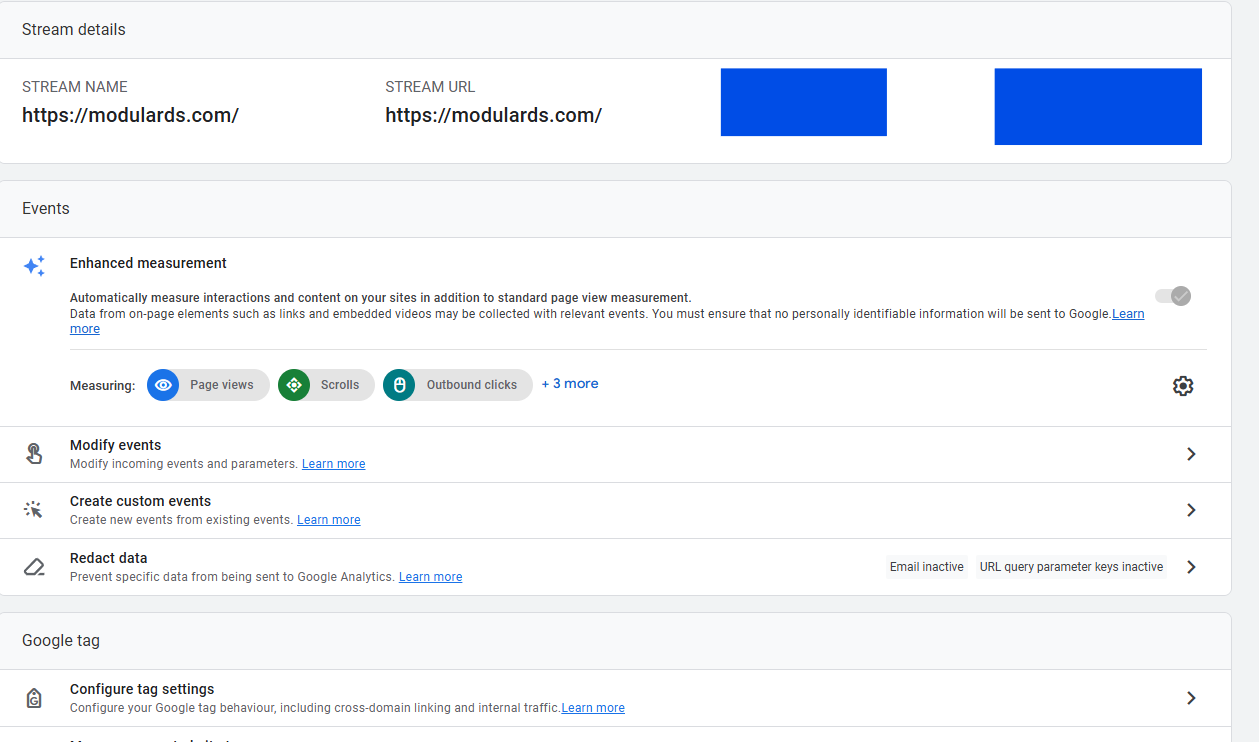
In this step, and a little further down, we can find the tagging instructions, with the global website tag (gtag.js) and instructions to use Google Tag Manager if you prefer.
A) Install Google Analytics 4 on WordPress via script
As we’ve seen in the previous step, Google Analytics provides a script (gtag.js) that you’ll need to copy and paste into the <head> section of your website, as the setup wizard indicates. If you’ve left that screen, you can go to the GA Admin panel and, under the property you want to measure, find the “Data Streams” option. There, you’ll find the code again.
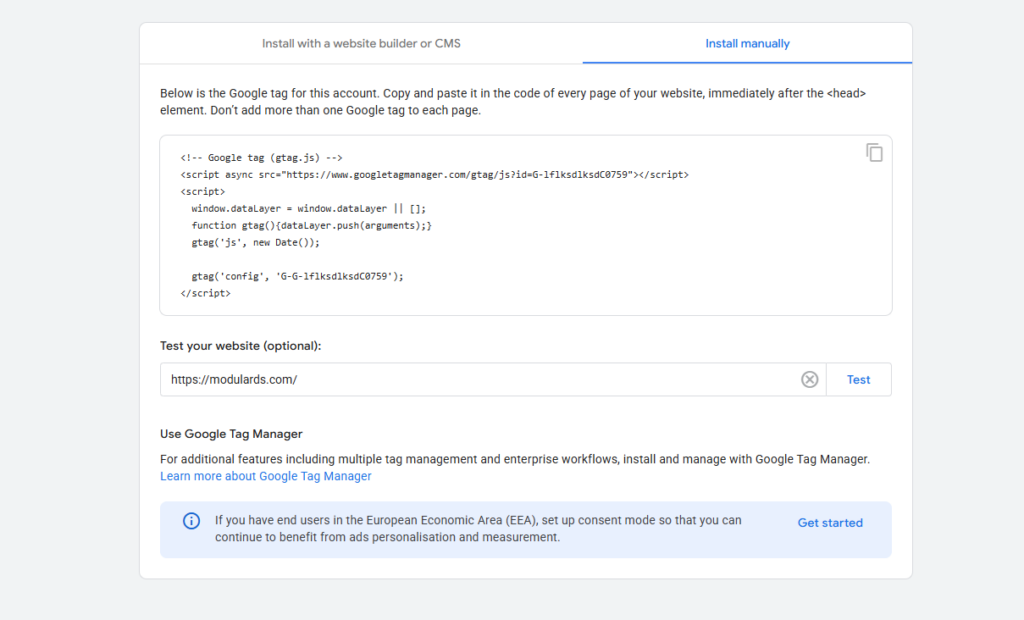
Once you paste the code into your website’s header, GA4 will start collecting data.
If you need help, you can ask your developer to add it directly to the site.
B) Install Google Analytics 4 on WordPress via Tag Manager
This method is a bit more advanced as it requires you to create an account in Google Tag Manager first.
Create a Google Tag Manager account
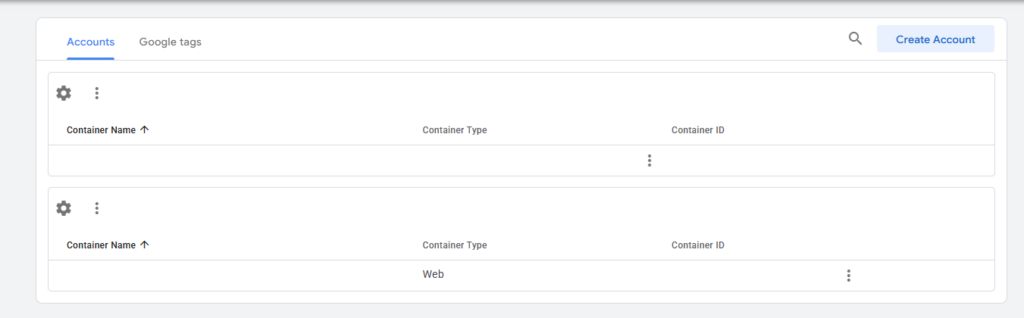
Assuming you’re already signed in to your Google account, go to Tag Manager and select “Create Account” (top right).
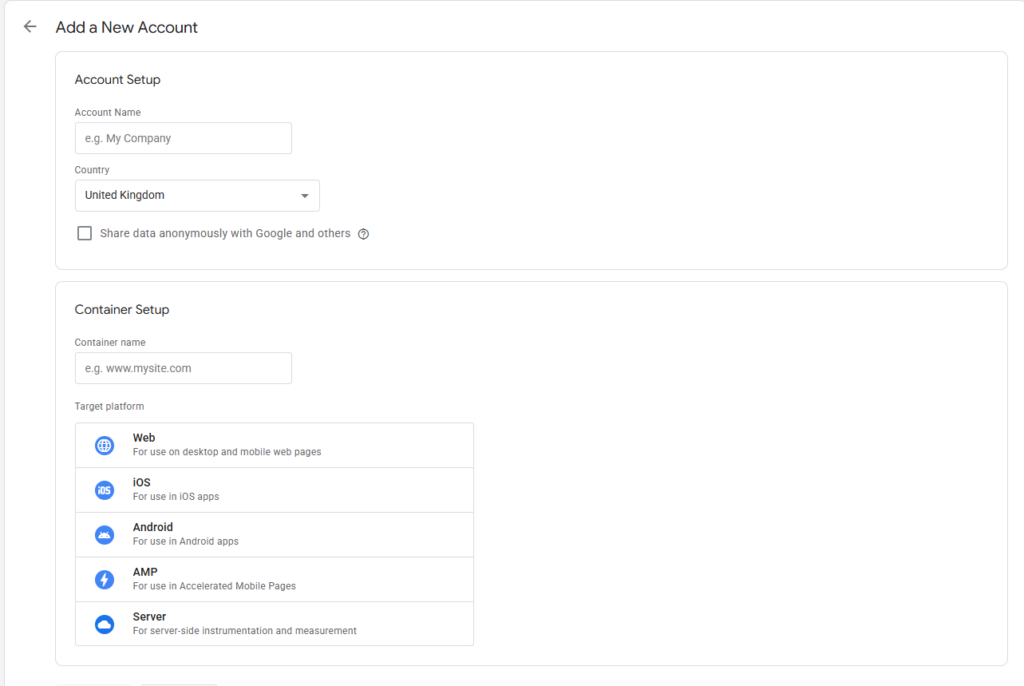
The process is similar to registering for Google Analytics. Enter the account name (it can be your company name) and choose the country location. In the Container Setup section, enter a container name (for example, your website URL) and select the container type. Then click “Create.”
Enable variables in Google Tag Manager
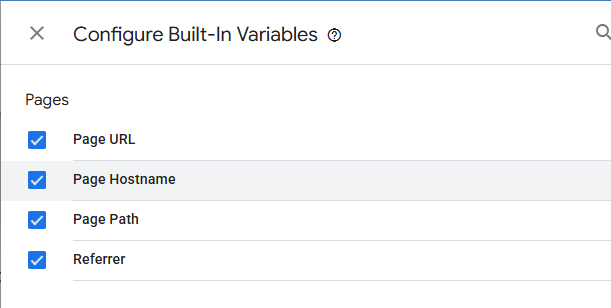
To send the correct information to Google Analytics, you’ll need to enable the right variables.
In the Variables section, click “Configure”, then select the following variables and continue:
Create the tag that connects to Google Analytics 4
Next, create a tag for GA4.
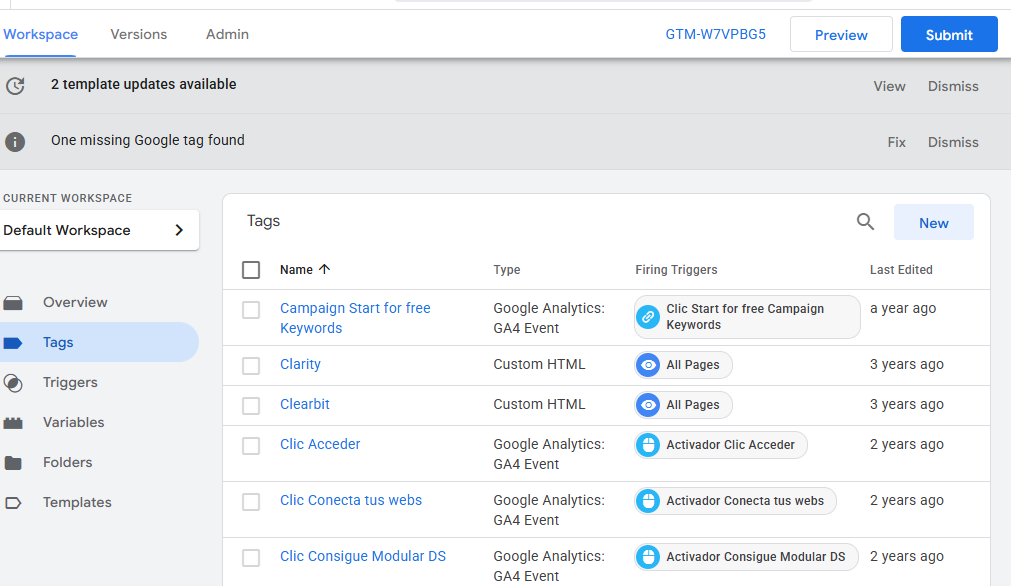
Go to Google Tag Manager and create “New” under the “Tags” menu.
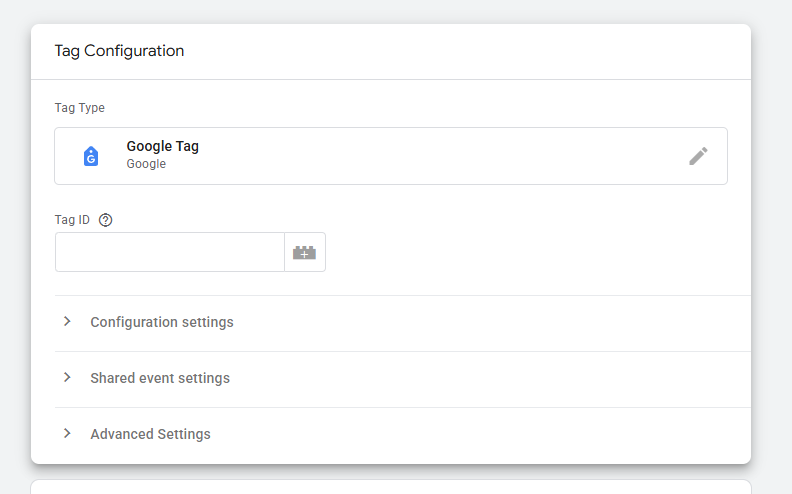
Then add the measurement ID you received from Google Analytics when creating your GA4 property. If you already have it, you can find it again in your GA4 settings.
You can name the tag whatever you want, but make sure it’s easy to recognize. In the tag configuration, select Google Analytics 4.
For the trigger, choose “All Pages,” so it fires on every page load.
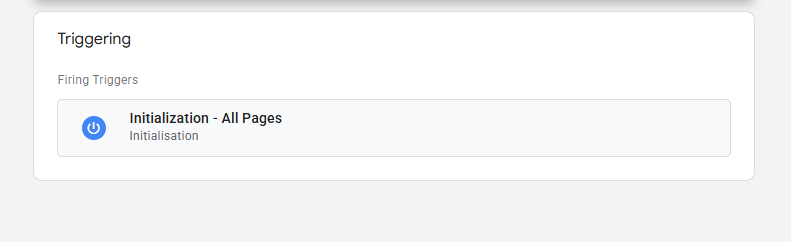
This step is essential. Without it, Google Analytics won’t receive any user behavior data.
And don’t forget to publish your Tag Manager container. Otherwise, it’s like preparing a great Instagram post and never hitting “Post.”
C) Install Google Analytics 4 on WordPress via plugin
If you don’t have technical knowledge (or anyone who can help you add the code), don’t worry, you can also use one of the many Google Analytics plugins available. Some popular options include MonsterInsights and GA Google Analytics.
Once installed and activated, you can configure it by adding your GA4 measurement ID. Many plugins also provide analytics reports directly inside WordPress.
Another option is WPCode – Insert Headers and Footers by WPBeginner, which allows you to add scripts to your WordPress site easily, no coding required.
Check if everything is working
This is one of the easiest parts of the entire process.
Open your website in one tab and the Google Analytics Realtime report in another. As soon as you see an active user (that’s you), you’ll know it’s working.
For a better test, open the site on your phone and in an incognito window on your computer, then browse a few pages. In the realtime view, you should see your activity (it may take a few seconds to update).
Once everything is set up, you can start reviewing reports about users, traffic sources, devices, your top pages, and many more metrics.
This is especially useful if you create WordPress maintenance reports for clients and want them to understand how their online business is performing.
Cookie banner for GDPR
This is very important: if your users are located in the European Union, you must request consent before loading Google Analytics cookies.
Make sure your cookie banner clearly requires the user to accept tracking cookies before they’re loaded.
Luckily, there are WordPress plugins that allow you to control which cookies load before consent and which ones load after.
Two popular options are Complianz – GDPR/CCPA Cookie Consent and CookieYes – Cookie Banner for Cookie Consent.
Set up goals based on Analytics events
One of the most important parts of Google Analytics is the ability to measure actions users take on your site through events.
If you want to use events as goals (conversions), you can do that too.
Create events with Google Tag Manager
If you don’t want to code, Tag Manager is one of the best ways to create events.
There are many types of events. Let’s look at a basic example: Page view.
- First, create a tag that sends data to Google Analytics 4.
- Go to the Tags section and create a new tag.
- Define the category, action, label, and value (if applicable).
- Next, set the trigger so the event only fires when the condition is met (in this case, page view).
- Once it works in preview mode, publish it.
- In GA4, go to “Configure” and then “Conversions”, and create a new conversion event. Mark the event you created in Tag Manager as a conversion.
- Once enabled, GA4 will start counting it as a goal.

Conclusions
Google Analytics has huge potential, especially when integrated with your WordPress website. It helps you stay informed about what’s happening on your site and make better decisions based on real data.
GA4 is the standard today, so if you haven’t set it up yet, the best time to do it is now. The sooner you start collecting data, the sooner you’ll have trends you can trust.
And if you manage multiple sites, having that data in context matters too. With Modular DS, you can connect Google Analytics and view key metrics directly from your dashboard, alongside the rest of your maintenance workflow, so you don’t have to jump between tools just to keep an eye on performance.
Frequently Asked Questions about GA4 and WordPress
1. Why should I install Google Analytics 4 (GA4) on WordPress?
GA4 is the latest version of Google’s analytics platform. Unlike the old Universal Analytics, it uses an event-based model that provides a deeper understanding of user behavior and offers predictive insights through Machine Learning.
2. What is the easiest way to connect GA4 to my website?
The simplest method is using a plugin. Tools like “GA Google Analytics” or “MonsterInsights” allow you to connect your account by simply pasting your Measurement ID (starting with G-XXXXXXXX) without needing to touch any code.
3. How can I verify if the installation is working correctly?
The best way is to check the Real-Time report in Google Analytics. Open your website in an incognito window and check the GA4 dashboard to see if at least one active user (you) is being tracked.
4. Is a cookie banner mandatory when using Google Analytics?
Yes. If your visitors are located in the European Union, the GDPR requires you to obtain explicit consent before Google Analytics tracking cookies are loaded in the user’s browser.
Frequently Asked Questions about GA4 and WordPress
1. Why should I install Google Analytics 4 (GA4) on WordPress?
GA4 is the latest version of Google’s analytics platform. It uses an event-based model that provides a deeper understanding of user behavior and offers predictive insights through Machine Learning.
2. What is the easiest way to connect GA4 to my website?
The simplest method is using a plugin. Tools like “GA Google Analytics” or “MonsterInsights” allow you to connect your account by simply pasting your Measurement ID (starting with G-XXXXXXXX) without needing to touch any code.
3. How can I verify if the installation is working correctly?
The best way is to check the Real-Time report in Google Analytics. Open your website in an incognito window and check the GA4 dashboard to see if at least one active user (you) is being tracked.
4. Is a cookie banner mandatory when using Google Analytics?
Yes. If your visitors are located in the European Union, the GDPR requires you to obtain explicit consent before Google Analytics tracking cookies are loaded in the user’s browser.