Manual WordPress Updates: When and How to Do Them
Automatic WordPress updates are a great way to keep your site secure and running smoothly. In most cases, they work perfectly and help reduce the risk of vulnerabilities caused by outdated software. However, there are situations where you may prefer a more hands-on approach. Perhaps you want to test changes before applying them, coordinate updates with other tasks, or troubleshoot a specific issue.
That’s where manual updates come in.
In this article, we’ll explore when updating WordPress manually makes sense, the advantages of having more control over the process, and different methods to do it safely.
Table of contents
Benefits of Updating WordPress Manually
- More control over timing: You decide exactly when the update happens. This is useful if you want to coordinate updates with backups, maintenance windows, or client approvals.
- Troubleshooting flexibility: If an automatic update fails due to server limits, file permissions, or connectivity issues, updating manually allows you to bypass those constraints and complete the process.
- Better testing workflows: Manual updates make sense when working with staging environments. You can test changes first and then deploy them intentionally to production.
- Edge-case scenarios: In rare cases where custom core modifications exist (not recommended), manual updates allow you to review and preserve necessary adjustments.
Associated Risks
While manual updates offer more control, they also come with additional responsibility. Since the process depends entirely on human intervention, mistakes or oversights can have a direct impact on your site.
Here are the main risks to consider:
- Human error: Skipping steps, uploading incorrect files, or forgetting to create a backup beforehand can result in downtime or broken functionality.
- More time and effort: Manual updates involve several steps and require careful execution. This can become time-consuming, especially if you manage multiple WordPress sites.
- Potential compatibility issues: If updates are applied without proper testing, conflicts with plugins or themes may still occur.
When and Why Opt for Manual Updates?
Manual updates are not a replacement for automatic ones. However, there are specific scenarios where updating manually makes sense.
- When automatic updates fail: Occasionally, updates may fail due to file permission issues, server configuration limits, connection errors, or plugin conflicts. In these cases, a manual update allows you to complete the process and restore normal functionality.
- When you need precise timing and coordination: If you want to align updates with other technical or maintenance tasks, performing the update manually gives you greater control over when and how it happens.
- When working with staging and production environments: If you use a staging site, you may prefer to test updates there first. Once everything is verified, you can manually apply the update to the live site with more confidence.
- When reviewing compatibility concerns: If you suspect compatibility issues with certain plugins or themes, updating manually allows you to prepare properly: create backups, temporarily deactivate components if needed, and monitor the process step by step.
- In environments with hosting constraints: Some hosting configurations may limit or interfere with automatic updates. In these cases, manual updates can be a more reliable option.
- When addressing security fixes: If a vulnerability affects your current version and you want to apply the fix immediately, performing a manual update ensures the patch is implemented without delay.
- In rare cases of core modifications: Direct modifications to WordPress core files are not recommended. However, if they exist, manual updates allow you to carefully review and reapply necessary adjustments after updating.
How to Manually Update WordPress Core
Method 1: Using cPanel (File Manager)
-
- Backup: It’s essential to create a complete backup of your site and database from cPanel before initiating any updates.
- Download WordPress: Go to the official WordPress site and download the latest available version.
- Deactivate plugins: From the WordPress dashboard, deactivate all plugins. This prevents potential conflicts during the update process.
- Access File Manager: Log in to your cPanel and access the “File Manager.”
- Replace files:
- Delete the
wp-includesandwp-adminfolders. - Upload the new
wp-includesandwp-adminfolders from the downloaded version. - Do not delete the
wp-contentfolder. If the new WordPress version includes changes towp-contentfiles, you can replace or update those specific files. However, it’s rare for this to happen, and in most updates, you won’t need to modifywp-content. - It’s crucial not to delete subfolders like
plugins,themes, oruploadswithinwp-content, as they contain your plugins, themes, and media files.
- Delete the
- Database Update: Once you’ve uploaded the files, access your website. If required, WordPress will prompt you to update the database.
- Reactivate Plugins: After the update, return to the WordPress dashboard and reactivate your plugins one by one, ensuring everything works correctly.
Method 2: Using FTP
If you’re not familiar with FTP or how to connect to your server using it, we recommend reviewing this guide first: FTP in WordPress.
- Backup: Create a backup of your site and database.
- Download WordPress: Access the official WordPress site and download the latest version.
- Deactivate plugins: From your WordPress dashboard, deactivate all plugins.
- FTP Connection: Use an FTP client like FileZilla to connect to your server.
- Replace files:
- Navigate to the root of your WordPress installation and delete the
wp-includesandwp-adminfolders. - Upload the new
wp-includesandwp-adminfolders from the WordPress version you downloaded. - Do not delete the
wp-contentfolder. - You can replace or update specific files within
wp-contentif the new WordPress version includes changes to files within that folder. However, these changes are rare, and in most updates, you won’t need to do anything withwp-content. - Never delete subfolders like
plugins,themes, oruploadswithinwp-content. These folders contain your plugins, themes, and media, respectively.
- Navigate to the root of your WordPress installation and delete the
- Update the database: After uploading the files, access your website. If necessary, WordPress will ask you to update the database.
- Reactivate plugins: Once the update is complete, access your WordPress dashboard again and reactivate the plugins one by one.
Method 3: Using WP-CLI
WP-CLI is a command-line tool for managing WordPress from the terminal, allowing operations without using the web interface. If you have SSH access to your server and WP-CLI is installed, you can follow these steps:
-
- Backup: Before performing any updates, create backups of your database and files.
- SSH connection: Connect to your server via SSH.
- Check for updates: Execute the following command to check for available updates:
wp core check-update
- Update WordPress: If an update is available, run:
wp core update
- Update the database: Next, make sure the database is also updated:
wp core update-db
- Update plugins and themes: If desired, you can also update plugins and themes with WP-CLI:
wp plugin update --all

wp theme update --all
- Check the site: Once finished, review your website to ensure everything works correctly.
Method 4: Using Git (for advanced workflows)
If your website is managed with Git version control, you can update WordPress through your repository workflow. This approach is ideal for developers and technical teams who want full traceability of changes and the ability to roll back if needed.
- Backup: As always, before making any changes, ensure you have recent backups of your database and files.
- Pull the latest version: If WordPress is included as a Git repository or submodule, pull the latest changes from the upstream source. If you’re using submodules, you may also need to run:
git submodule update --remote. - Resolve merge conflicts: If you have local modifications, Git may flag merge conflicts. Review and resolve them carefully before proceeding.
- Commit and push: Once everything is reviewed and working as expected, commit the changes and push them to your remote repository if applicable.
- Update the database: Like with other methods, visit your website and follow instructions if a database update is required.
- Plugins and themes: If plugins and themes are also version-controlled, repeat the update process according to your workflow.
This method is especially useful when working with separate development and production environments, as it allows you to test updates in staging before deploying them to the live site.
What If My Website Is Custom-Built?
If your website includes custom code, whether in a theme, custom plugins, or integrations, updates require a bit more planning. Here are some key considerations:
- Custom code and dependencies: Custom themes, plugins, or integrations may depend on specific hooks, functions, or third-party libraries that could change between versions.
- Compatibility risks: Major WordPress releases or plugin updates may introduce changes that affect custom functionality. Without testing, this could lead to layout issues, broken features, or integration errors.
- Critical business logic: If your site includes custom workflows, APIs, or external integrations (CRMs, payment gateways, automation tools), updates should be tested carefully to ensure nothing breaks.
Recommended approach:
- Use staging whenever possible: The safest strategy is to test updates in a staging environment before deploying them to production. This applies whether updates are manual or automated.
- Manual updates for controlled deployments: In highly customized projects, applying updates manually (or through a controlled deployment workflow) allows you to review changes and verify compatibility before going live.
- Automated updates with safeguards: Automatic updates can still be used, but they should be paired with reliable backups and restores, monitoring, and ideally staging-based testing. The goal is not to avoid automation, but to reduce risk.
Managing Updates at Scale
If you manage multiple WordPress sites, handling updates manually on each one can quickly become time-consuming.
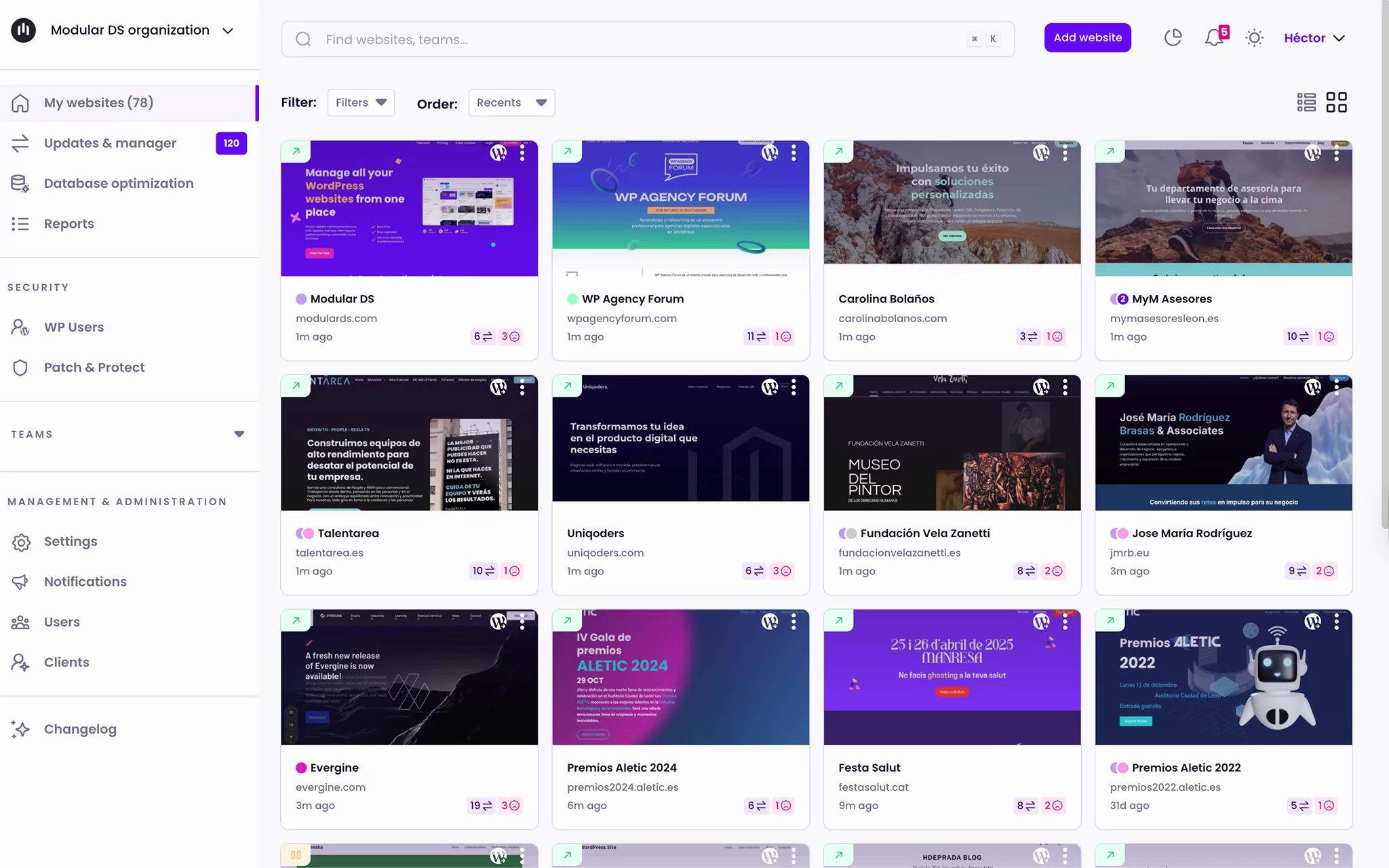
This is where tools like Modular DS can make a difference in centralizing your update process while maintaining visibility and control.
Modular DS: Bulk Updates from a Single Dashboard
Modular DS is an all-in-one WordPress management platform that helps agencies and freelancers manage multiple websites.
From a single dashboard, you can:
- Manage and run bulk updates for plugins, themes, and WordPress core
- Run safe updates, with the ability to quickly roll back if something goes wrong
- Monitor uptime and site health
- Schedule backups and restore them when needed
- Send automated maintenance reports
Beyond technical tasks, the tool is designed to help you streamline your maintenance workflows, save time, and demonstrate the value of your service to clients.
Conclusion
Keeping WordPress updated is essential for maintaining a secure, stable, and high-performing website.
Automatic updates offer convenience. Manual updates provide additional control when needed. Understanding both approaches allows you to adapt to different scenarios, whether you manage a single site or dozens.
Ultimately, the right update strategy depends on your workflow, your infrastructure, and the level of control your projects require.
Frequently Asked Questions About Manual WordPress Updates
Why should I consider a manual update instead of an automatic one?
In most cases, automatic updates work perfectly well. However, manual updates can be useful when an automatic update fails, when you need to coordinate updates with testing or maintenance windows, or when you want more control over the timing of deployment.
If something goes wrong during the manual update, can I revert the changes?
Yes, provided you created a backup beforehand. This is why having a recent, complete backup of both files and the database is important before performing any update. With it, you can restore your site to its previous state if needed.
Do I have to deactivate all plugins before updating?
Not necessarily. However, in more complex environments or highly customized sites, temporarily deactivating plugins can reduce the risk of conflicts during the process.
Are WP-CLI and Git recommended for updating WordPress?
They are practical options for developers and technical teams. WP-CLI and Git allow for more controlled deployments, especially in staging-to-production workflows. However, they require technical knowledge as well as familiarity with command-line tools and version control systems.
I updated WordPress manually, and now I see errors. What should I do?
Start by reviewing the update steps to ensure everything was completed correctly. Check your error logs if available. If the issue persists, restoring your backup is the safest immediate solution while you investigate the cause.
After updating WordPress, should I also update themes and plugins?
Yes. Keeping themes and plugins updated helps maintain compatibility, improve performance, and avoid security issues.